ASP.NET Bar Chart with Custom Labels

In this blog post we will look on how to build a bar chart with multiple series, custom X-labels and inner labels using MindFusion.Charting for ASP.NET control.

1. General Appearance of the Chart

We want to show three data series and we want to show the first values of each series in a cluster, then second cluster with the second values of each series etc. In order to render the bars in this order we set the BarType property to BarType.Clustered3D. We correct the Depth3D to make the bars less thick and increase the distance between each series with DistBtwBars. We make the bars wider, setting BarWidth to 30.

    //general appearance
    BarChart1.BarType = MindFusion.Charting.BarType.Clustered3D;
    BarChart1.BarWidth = 30f;        
    BarChart1.Depth3D = 15f;
    BarChart1.DistBtwBars = 10f;

2. Grid

Our bars are vertical e.g. it is a column chart, so we would like to have a horizontal grid. We set the GridType property to GridType.HorScale and we set the AltGridBrush and GridBruh to different gray colors to give us nice alternating grid stripes. For the outlining of the whole plot area we use the PlotAreaOutlinePen.

    //grid settings
    BarChart1.GridBrush= new MindFusion.Drawing.SolidBrush(System.Drawing.Color.FromArgb(242, 239, 224));
    BarChart1.GridPen= new MindFusion.Drawing.Pen(System.Drawing.Color.FromArgb(204, 196, 185));
    BarChart1.GridType = MindFusion.Charting.GridType.HorScale;
    BarChart1.PlotAreaOutlinePen = new MindFusion.Drawing.Pen(System.Drawing.Color.FromArgb(204, 196, 185));

3. Labels Inside Bars

The labels inside bars show the data of each bar – this is done by setting the InnerLabelType property to LabelType.Data. We use a white LabelBrush to draw the labels and set their InnerLabelBorder to Border.RoundedRect. The background of the inner labels is set to gray.

    //inner labels settings
    BarChart1.InnerLabelBackground = new MindFusion.Drawing.SolidBrush(System.Drawing.Color.FromArgb(112, 128, 144));
    BarChart1.InnerLabelBorder = MindFusion.Charting.Border.RoundedRect;
    BarChart1.InnerLabelType = MindFusion.Charting.LabelType.Data; 
    BarChart1.LabelBrush = new MindFusion.Drawing.SolidBrush(System.Drawing.Color.FromArgb(255, 255, 255));

4. Title

We want not only title but also second title – or a subtitle. That’s why we use both the TitleText and SubTitleText properties. We leave no distance between them – we set SubTitleOffset to 0. But we would like the two titles to be well above the plot area, that’s why we set bigger TitleOffset.

    //title and subtitle
    BarChart1.SubTitleOffset = 30;
    BarChart1.SubTitleText = "all major continents";
    BarChart1.TitleOffset = 0;
    BarChart1.TitleText = "Sales";

5. Labels at the Axes

The X-labels are custom text – we set them with XLabels. The title of the Y-axis is rotated, so we use LabelOrientation.BottomToTop.

    //axes labels settings
    BarChart1.XAxisSettings.LabelSeriesIndex = 1;
    BarChart1.XLabels.Clear();
    BarChart1.XLabels.Add(new List(){ "Europe", "Asia", "North America", "South America"});
    
    BarChart1.YAxisSettings.TitleLabel = "in mlns. USD";
    BarChart1.YAxisSettings.TitleLabelOrientation = MindFusion.Charting.LabelOrientation.BottomToTop;

Here is a screenshot of the final chart:

ASP.NET Bar Chart with Custom Labels

ASP.NET Bar Chart with Custom Labels

The sample can be downloaded from here:

Download ASP.NET Bar Chart with Labels Sample

The trial version of MindFusion.Charting for ASP.NET can be downloaded directly from the link below. It contains many more samples and tutorials:

Download MindFusion.Charting for WebForms Trial Version

About MindFusion.Charting for WebForms: A powerful WebForms control that lets programmers add compelling charts in any ASP.NET application. With the component you can design and create any bar, column, line, area, scatter, bubble, radar, polar, doughnut and pie chart. Its elegant API includes data binding, themes, hit-testing, zoom, drill-down, wizards and many more.

The control takes advantage of the rich capabilities of Microsoft WebForms but its functionality does not bring excess complexity. The API is very easy to understand, all the features are duly documented. Numerous samples and step-by-step tutorials let you learn quickly how to tailor the tool in order to meet best your needs.

Details about the various features of the control are provided here. The online demo will give you an overview of the control’s rich capabilities. Licenses, prices and discounts are listed at the buy page.

Diagramming for WinForms 6.0.4

MindFusion has released a new version of its popular diagramming component for WinForms. Most of the new features are requested by the users – here is a list:

Import of OpenOffice Draw Files

The new DrawImporter class can import *.odg files, created by the OpenOffice Draw vector graphics editor. The importer requires a reference to the MindFusion.Diagramming.Import.Draw.dll assembly. The DrawImporter supports shapes from the General and Flowchart shape palettes in Draw. At your disposal are a variety of Import method overloads that can be used to import the OpenOffice drawing into a DiagramDocument whose pages correspond to the Draw pages, or into a single Diagram whose content is merged from all imported pages.

Import from OpenOffice Draw files is now supported.

Import from OpenOffice Draw files is now supported.

Miscellaneous

Rotation of a node.

Rotation of a node.

A trial version of the component is available from this link:

Diagramming for WinForms 6.0.4

If you have questions or run into problems using the component you can use the Diagramming for WinForms forum, the help desk or write us at support@mindfusion.dev. Our support team will be pleased to help you.

About MindFusion.Diagramming for WinForms: A programming component that provides any WinForms application with a full set of features for creating and customizing all types of diagrams, flowcharts, schemes, hierarchies, trees, graphs etc. The control provides numerous ways to save and load a diagram, six auxiliary controls and more than 10 automatic graph layout algorithms. Diagram elements include scrollable tables, container nodes, multi-segment arrows, custom diagram item types and many more. Further details here.

Diagramming for WinForms is a royalty-free component, clients get 12 month upgrade subscription when buying a license. The source code is also available for purchase. Visit the buy page for a list with the current license prices.

Diagramming for Java Swing, V4.0.2

MindFusion.Diagramming for Java Swing, V4.0.2 has just been released. The new features are mostly requested by the users, we have also fixed several bugs. Here are the details:

ContainerNode improvements

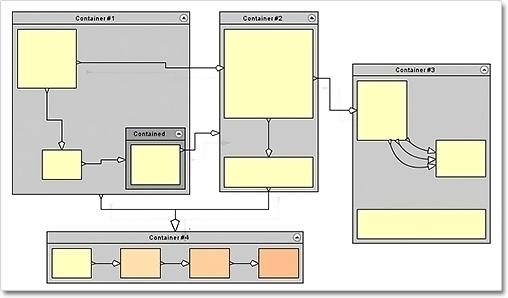
  • JDiagram now draws child nodes by their container. When containers overlap, the children of the lower container can no longer appear above the children of the upper container;
  • You can use the new ClipChildren property to specify whether child items are clipped to the boundaries of the container;
  • When you drop nodes into a container, the ZIndex property is not changed automatically;
  • and more.
Container nodes

Container nodes

Miscellaneous

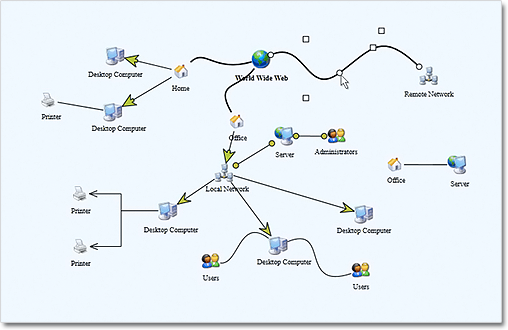
  • The placement of link labels at shorter link segments is improved.
  • The new DiagramLink.intersects method checks whether two links intersect.
  • You can use the hitTest method to determine whether a diagram item or any of its child items contain the specified point.
  • The getFlatItemList method returns a list of all TreeViewNode items.
  • as well other new properties and methods – check the complete list here.
Labels at diagram links

Labels at diagram links

You can download the control and test yourself its performance and functionality. Here is a direct link to the trial version:

Download MindFusion.Diagramming for Java Swing, V4.0.2

Technical support

Your questions about the library or any other of our components are welcomed by our support team. You can write at the forum, help desk or at support@mindfusion.dev.

About Diagramming for Java Swing: MindFusion.Diagramming for Java Swing provides your Java application with all necessary functionality to create and customize a diagram. The library is very easy to integrate and program. There are numerous utility methods, rich event set, more than 80 predefined shapes. The tool supports a variety of ways to render or export the diagram, advanced node types like TreeView nodes, hierarchical nodes, tables, container nodes and many more. There are 15 automatic layouts, various input / output options and fully customizable appearance. A detailed list with JDiagram’s features is uploaded here. You can check the online demo to see some of the functionality implemented.

Diagramming for Java Swing is royalty free, there are no distribution fees. Licenses depend on the count of developers using the tool – check here the prices.

Diagramming for WPF 3.0.2

MindFusion has just released Diagramming for Wpf programming component v. 3.0.2. Most of the newly added features are requested by our customers. Here are details:

Visio 2003 Import

The new VisioImporter lets you import Visio 2003 XML Drawing files (*.vdx) into WpfDiagram. You can import all standard Visio flowchart shapes as well most of the UML and Database entity shapes. The shapes are imported to their closest representations in the MindFusion.Diagramming for Wpf object model. The relationships between the objects are preserved and the Visio links are imported as DiagramLink objects. Additionally, most of the attributes of the Visio objects such as text, text format, fill and line colour and style are preserved. WpfDiagram raises an event for each imported node and you can set the shape node if it is not recognized by the control or you want to change the shape.

The Import method imports all Visio pages into a DiagramDocument. A DiagramPage is created for each page from the VDX file. The new GetPageCount and ImportPage methods let you determine how many pages are in the Visio document and import only a single one. You can import all Visio pages into a single diagram.

It is easy to import a  diagram from Visio.

It is easy to import a diagram from Visio.

Miscellaneous

  • The overload methods of AttachTo that attach node to link segments or control points, now let you specify negative index values. Negative values are interpreted as relative to the last point or segment, regardless of the current number of link segments.
  • The handling of Clip paths in PdfExporter is improved.
  • You can export the swimplane grid to Visio by setting the ExportLanes property of the VisioExporter.
  • The Copy method lets you copy text attributes between objects that implement the ITextAttribute interface, such as diagram items table cells, tree items.
  • as well other new features – check the full list here.
An arrow is shaped by its control points.

An arrow is shaped by its control points.

You can download the trial version of the software from this link:

Download MindFusion.Diagramming for WPF 3.0.2

The download contains all runtime libraries of the control, various samples for different .NET versions, extensive desktop documentation and step-by-step tutorials.

If you face difficulties installing or using Diagramming for Wpf, please contact MindFusion support team per e-mail or phone. You can also use the forum or help desk. All support inquiries are answered within hours of receiving them.

About MindFusion.Diagramming for Wpf: Designed and developed to be easy to integrate, use, and customize, this native WPF component places at your disposal every single feature you would ever need to create flowcharts, diagrams, graphs, schemes, DB relationships, trees and many more. Its long list of style options gives you complete control over the appearance of the diagram. With a set of eight automatic layouts you are sure to choose the best arrangement for your items and make the diagram easy to comprehend.

The control boasts a long list of events, properties and methods for user interaction, item creation, data input and output. You can read the full features list here. The online demo shows samples that demonstrate various capabilities of the control. The licensing scheme and prices are uploaded at the buy page. Source code is also available.

Create diagram connectors using drag and drop

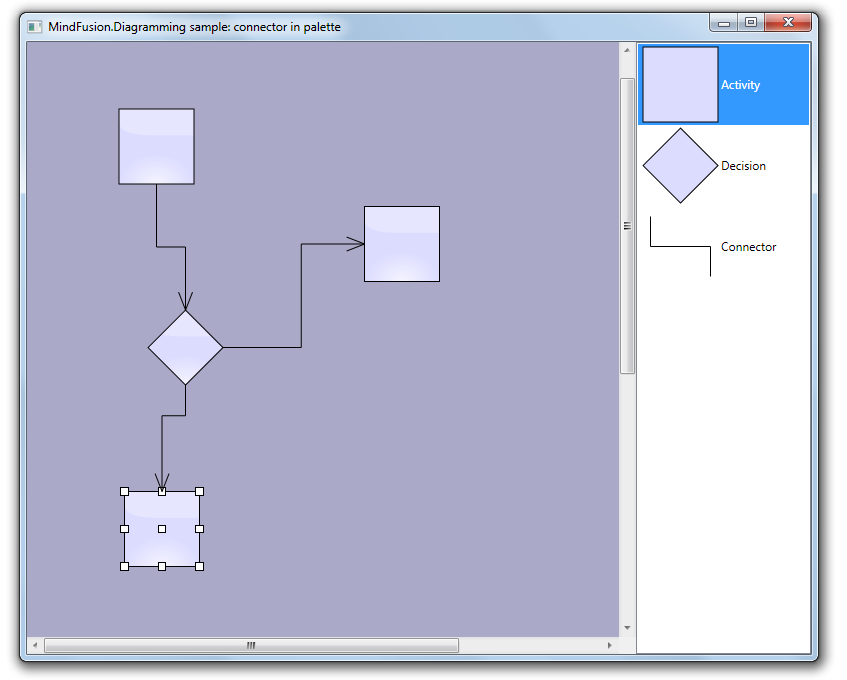
In this post we show how to create diagram links via drag-and-drop operation from a NodeListView used as a palette. Since the NodeListView control can contain only DiagramNode objects, we will create a custom node shape representing a connector. Once the dummy connector node is created, the NodeCreated event handler will replace it with a DiagramLink. In addition, the handler will find nearby nodes and automatically connect the link to them.

Let’s start with a new WPF project. Add a reference to mindfusion.diagramming.dll, and add Diagram and NodeListView controls to the window:

<ScrollViewer
	Grid.Column="0"
	Focusable="False"
	HorizontalScrollBarVisibility="Visible">
	
	<diag:Diagram
		x:Name="diagram"
		AllowDrop="True"
		NodeCreated="OnNodeCreated"
		NodeModified="OnNodeModified">
	</diag:Diagram>
	
</ScrollViewer>

<diag:NodeListView
	x:Name="nodeList"
	Grid.Column="1">
</diag:NodeListView>

In the Window constructor, create a custom node shape that will represent connectors:

var connectorShape = new Shape(
	null, // no borders
	new[] // decorations
	{
		new LineTemplate(10, 10, 10, 50),
		new LineTemplate(10, 50, 90, 50),
		new LineTemplate(90, 50, 90, 90)
	},
	null,
	FillRule.Nonzero, "Connector");

Add a few nodes to the NodeListView, along with the dummy connector node:

var item1 = new ShapeNode { Shape = Shapes.Rectangle };
NodeListView.SetLabel(item1, "Activity");
nodeList.Items.Add(item1);

var item2 = new ShapeNode { Shape = Shapes.Decision };
NodeListView.SetLabel(item2, "Decision");
nodeList.Items.Add(item2);

var item3 = new ShapeNode { Shape = connectorShape };
NodeListView.SetLabel(item3, "Connector");
nodeList.Items.Add(item3);

In the NodeCreated event handler, check if the newly created node represents a connector, and replace it with a DiagramLink:

var node = e.Node as ShapeNode;
if (node != null)
{
	if (node.Shape.Id == "Connector")
	{
		// replace the dummy connector node with a DiagramLink
		var bounds = node.Bounds;
		diagram.Items.Remove(node);

		var link = diagram.Factory.CreateDiagramLink(
			bounds.TopLeft, bounds.BottomRight);
		link.SegmentCount = 3;
		link.Shape = LinkShape.Cascading;

		ConnectToNearbyNode(link);
	}
	...
}

Otherwise if it is a regular node, set its anchor points and connect it to nearby unconnected links, if there are any:

else
{
	node.AnchorPattern = AnchorPattern.Decision2In2Out;
	node.Effects.Add(new GlassEffect());
	ConnectToNearbyLink(node);
}

The ConnectToNearbyNode method uses a LINQ query to find nodes in the vicinity of the link’s start or end point. If one is found at a distance shorter than 120 points, it is set as the link’s Origin or Destination.

private void ConnectToNearbyNode(DiagramLink link)
{
	// connect to a nearby origin node
	var origin = diagram.Nodes.OrderBy(n =>
		Utilities.Distance(n.GetCenter(), link.StartPoint)).FirstOrDefault();

	if (origin != null)
	{
		var distance = Utilities.Distance(origin.GetCenter(), link.StartPoint);
		if (distance < 120)
		{
			link.Origin = origin;
			link.Route();
		}
	}

	// connect to a nearby destination node
	var destination = diagram.Nodes.Where(n => n != origin).OrderBy(n =>
		Utilities.Distance(n.GetCenter(), link.EndPoint)).FirstOrDefault();

	if (destination != null)
	{
		var distance = Utilities.Distance(destination.GetCenter(), link.EndPoint);
		if (distance < 120)
		{
			link.Destination = destination;
			link.Route();
		}
	}
}

Similarly, the ConnectToNearbyLink method finds a nearby unconnected link and sets the specified node as the link’s Origin or Destination.

private void ConnectToNearbyLink(DiagramNode node)
{
	var outLink = diagram.Links.Where(l => l.Origin is DummyNode).OrderBy(l =>
		Utilities.Distance(node.GetCenter(), l.StartPoint)).FirstOrDefault();

	if (outLink != null)
	{
		var distance = Utilities.Distance(node.GetCenter(), outLink.StartPoint);
		if (distance < 90)
		{
			outLink.Origin = node;
			outLink.Route();
			return;
		}
	}

	var inLink = diagram.Links.Where(l => l.Destination is DummyNode).OrderBy(l =>
		Utilities.Distance(node.GetCenter(), l.EndPoint)).FirstOrDefault();

	if (inLink != null)
	{
		var distance = Utilities.Distance(node.GetCenter(), inLink.EndPoint);
		if (distance < 90)
		{
			inLink.Destination = node;
			inLink.Route();
			return;
		}
	}
}

The result of several drag and drop operation is displayed below.

The complete sample project is available for download here:
https://mindfusion.dev/_samples/LinkDragDrop.zip

Enjoy!