
In this article we look at the steps required to build this minimal JavaScript diagramming application:

The application uses MindFusion JavaScript Diagram library and allows the user to create various flowchart shapes with drag and drop, customize their color and edit text. Users can create links and specify whether links have arrowheads. Once ready, they can save the current diagram and load it when needed.
I. Setup of the Initial Project
We save precious time by starting with a ready project: MindFusion’s starter project for JS Diagram for vanilla JavaScript. You can find the link to the GitHub page of the project from the official product page for the JavaScript diagram library: https://mindfusion.dev/javascript-diagram.html.
The URL to clone the GitHub sample project in pure JavaScript is https://github.com/MindFusionComponents/diagram-starter-vanilla.
We open a terminal and clone the project
git clone https://github.com/MindFusionComponents/diagram-starter-vanilla
cd diagram-starter-vanilla
npm install
npm start
After that you should be able to see the starter project live:
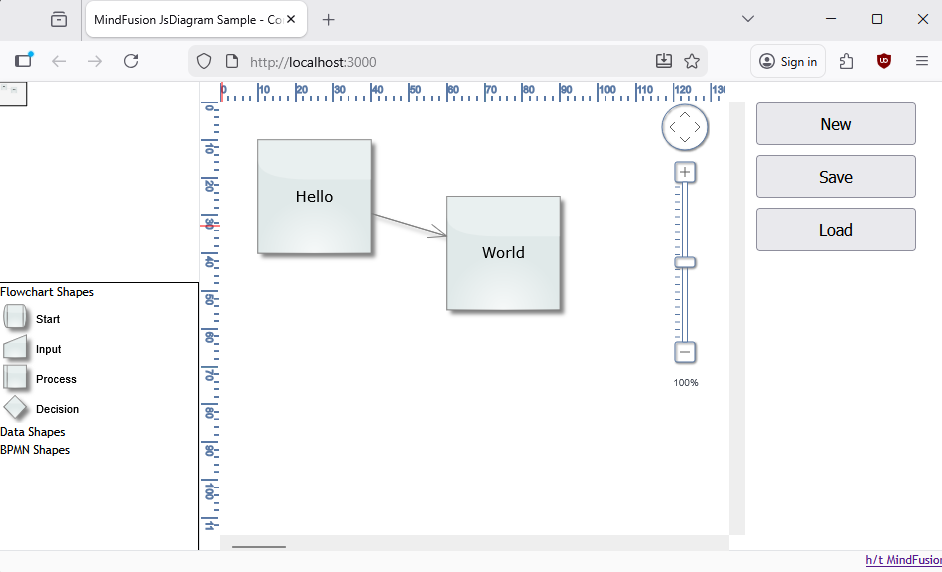
The initial app renders the diagram at the main portion of the screen together with the Overview and Palette controls to the left and the Zoom control to the right. At the top right corner you can see three buttons – for a new diagram, save and load.
Let’s take a look at the server first. The server code for the app is in server.js and is very simple:
const app = express();
const port = 3000;

app.use(express.static(__dirname));

reload(app).then(function () {
  app.listen(port, function () {
   console.log(`Server listening at http://localhost:${port}`);
  })
}).catch(function (err) {
  console.error('Reload could not start, could not start server/sample app', err)
})
We use Express as a web server and initialize it on port 3000. There’s nothing special about the way we create and run the server.
Now – to the diagram initialization. The Diagram needs a Canvas element to draw itself onto and this canvas determines where it is going to show on the web page. The web page for our application is index.html and there we specify a Canvas element with an ID:
<div style="height: 200px; border-bottom: 1px solid #e2e4e7; background-color: #c0c0c0;">
	<canvas id="overview" width="200" height="200">
	</canvas>
</div>
The other components of the diagram – Ruler, Palette, Overview, Zoom control – require a DIV element or a Canvas. We arrange them as needed and give each element an ID, which we will use later on to initialize the required object like this:
// create a DiagramView component that wraps the "diagram" canvas
var diagramView = DiagramView.create(document.getElementById("diagram"));
diagram = diagramView.diagram;
.....
.....
// create an Overview component that displays scaled-down version of the diagram
var overview = MindFusion.Diagramming.Overview.create(document.getElementById("overview"));
overview.diagramView = diagramView;
overview.backColor = "#eee";
The Palette component can show categories with nodes and links. The shapes and links are instances of the DiagramNode and DiagramLink classes. Node shapes can be assigned with their id like this:
palette.addCategory("Flowchart Shapes");
	var shapes = ["Start", "Input", "Process", "Decision"]
	for (var i = 0; i < shapes.length; ++i) {
		var node = new MindFusion.Diagramming.ShapeNode();
		node.shape = shapes[i];
		node.style = shapeNodeStyle;
		palette.addItem(node, "Flowchart Shapes", shapes[i]);
	}
You can check the available shapes on the “Predefined Node Shapes” page in the online documentation for the JavaScript diagram library at: https://mindfusion.dev/docs/javascript/diagramming/index.htm
Save and load for the diagram is done with the toJson and fromJson methods. It is important to note that these methods return a JSON string and need a JSON string. So, our application needs to handle save of the string once the Save button is pressed. This is done in two ways, depending on whether the browser of the user supports the file API:
async function onSaveClick()
{
	try
	{
		// in this example we store diagram JSON files on local file system;
		// alternatively you could send JSON to server-side using fetch API, e.g.
		// fetch('api_url', { method: 'POST', ... }
		const json = diagram.toJson();

		// file system API is not fully supported in some browsers yet
		if (window.showSaveFilePicker)
		{
			if (!window.isSecureContext)
			{
				alert(insecureContextMessage);
				return;
			}

			const handle = await window.showSaveFilePicker(
			{
				startIn: 'documents',
					suggestedName: 'diagram.json',
					types: [{
						description: 'JSON Files',
						accept: {
							'application/json': ['.json'],
						},
					}],
			});
			const writable = await handle.createWritable();
			await writable.write(json);
			await writable.close();
		}
		else
		{
			// work-around for browsers that do not support file system
			const blob = new Blob([json], { type: 'application/json' });
			const url = URL.createObjectURL(blob);
			const a = document.createElement('a');
			a.href = url;
			a.download = 'diagram.json';
			document.body.appendChild(a);
			a.click();
			document.body.removeChild(a);
			URL.revokeObjectURL(url);
		}
	}
	catch (err)
	{
		console.error(err.name, err.message);
	}
}
As you can see, the JSON string is saved in a file called diagram.json If the browser does not support the modern file API, we create a temp link in the document and simulate a click on it that will download the file. Load of the JSON file is similar. By load you need to remember that you have to read the contents of the JSON file and assign it to the diagram.fromJson method. NOTE: you should not parse the JSON string beforehand.
II. Styling Nodes and Links
We have edited the HTML for the web page to include the new UI controls that allow the user to change the color of the diagram elements. They are <input> elements of type ‘color’: we use the browsers built-in color pickers that render by default with color input elements.

Then we use standard event handling for the change event to get the newly selected color and assign it to a global variable:
// New global variables for default styles
var defaultNodeBrushColor = '#e0e9e9';

..............
..............
..............

// Get style control elements
const nodeColorPicker = document.getElementById('nodeColorPicker');

..............
..............
..............

// Event listeners for style controls
nodeColorPicker.addEventListener('change', (event) => {

	defaultNodeBrushColor = event.target.value;

	diagram.selection.nodes.forEach(node => {
	node.brush = defaultNodeBrushColor;
     });
});
As you can see, all selected nodes get an update of the color. The newly selected color is now the default color for every node that is created:
// detect user's actions by handling diagram events, such as nodeCreated
diagram.nodeCreated.addEventListener(
	(sender, args) =>
	{
		args.node.brush = defaultNodeBrushColor;
		args.node.textColor = defaultTextColor;
		args.node.shadowOffsetX = 0;
		args.node.shadowOffsetY = 0;
		args.node.anchorPattern = nodeAnchorPattern;
	});
This is how we handle the nodeCreated event for the diagram. You can check the list with available diagram events in the online documentation: https://mindfusion.dev/docs/javascript/diagramming/T_MindFusion_Diagramming_Diagram_Events.htm
If you change the look of a node once it is created, you might consider changing during the process of creation as well. This allows the user to see precisely what the new node will look like instead of getting a different object at the end. The same events – linkCreated and linkCreating are raised for links as well.
III. Customizing the Links
If you draw a link between two nodes you notice that instead of a straight connecting line, the link breaks into several perpendicular segments. This is due to the diagram.routeLinks property being turned on. Links can have shapes on both their ends. In our application we allow the user to draw links without a head shape. This is done by setting the headShape property to null. We use a checkbox to regulate that:
var defaultHeadShape = 'Triangle';
...................
...................

const linkHeadCheckbox = document.getElementById('linkHeadCheckbox');

...................
...................

defaultHeadShape = linkHeadCheckbox.checked ? 'Triangle' : null;

..................
..................


linkHeadCheckbox.addEventListener('change', (event) => {

	defaultLinkHeadShape = event.target.checked ? 'Triangle' : null;
	diagram.selection.links.forEach(link => {

	link.headShape = defaultLinkHeadShape;

   });
});
IV. Anchor Patterns
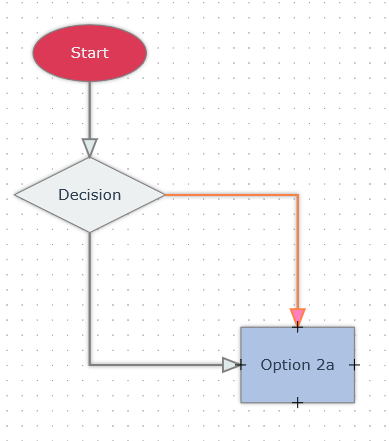
By default links can go out from any point along the side of a DiagramNode and connect to an arbitrary point at another DiagramNode. A lot of diagrams show nodes that are connected only through the middle or some other predefined points. In MindFusion’s JavaScript Diagram Library this is achieved with the AnchorPattern property, which is a list with AnchorPoint instances. The AnchorPoints are specified in coordinates from 0 to 100 on both X and Y. These are relative units and indicate where on the node surface, links are allows to go out or come in. Imagine the node bounds as a coordinate system that spans from 0 to 100 in both directions:
nodeAnchorPattern = new AnchorPattern([
    new AnchorPoint(50, 0, true, true),//center top
    new AnchorPoint(100, 50, true, true),//center right
    new AnchorPoint(50, 100, true, true),//center bottom
    new AnchorPoint(0, 50, true, true)//center left
]);
nodeAnchorPattern.points[0].toolTip = "Center Top";
nodeAnchorPattern.points[1].toolTip = "Center Right";
nodeAnchorPattern.points[2].toolTip = "Center Bottom";
nodeAnchorPattern.points[3].toolTip = "Center Left";

....................
....................

node.anchorPattern = nodeAnchorPattern;
Once you assign this AnchorPattern to a node, a link can only connect in the middle of its sides:
V. The Initial Diagram
When the user opens the web page for the first time they see a simple decision diagram, which can easily be removed with the ‘New’ button:
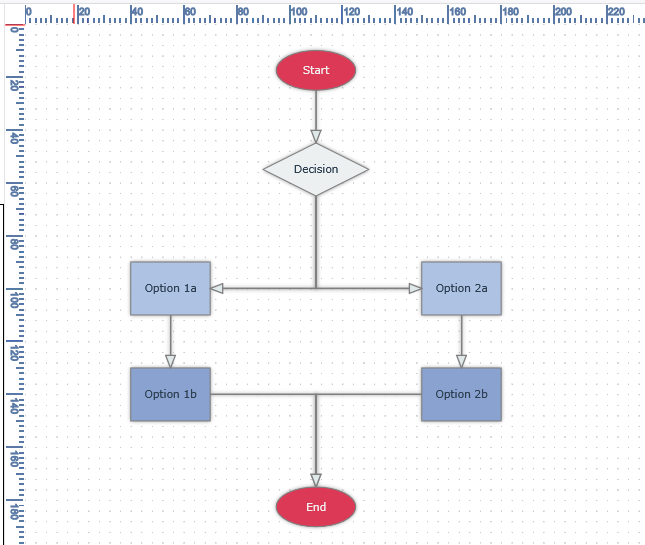
This diagram is created in code with the help of the Factory class. Factory is a helper class that allows creation of new nodes and links with a single method call. All node types are supported. The Factory class is accessible directly through the diagram.factory property:
var startNode = diagram.factory.createShapeNode(95, 10, 30, 15);
startNode.shadowOffsetX = 0;
startNode.shadowOffsetY = 0;
startNode.text = "Start";
startNode.shape = 'Ellipse';
startNode.brush = "#DB3955";
startNode.textColor = "#f0f0f0";
startNode.anchorPattern = nodeAnchorPattern;
The nodes and links are automatically added to the diagram. If you use a regular constructor, you need to add them manually yourself.
————————————————————————————————————————–
And with that our tutorial is finished. You can download the final version of this diagram application from this link:
Download the Final JavaScript Diagram Demo Project
This tutorial is available also as a video, which you can watch at: https://youtu.be/NrZ25gM5xEw
Learn more about Mindfusion JavaScript Diagram Library at: https://mindfusion.dev/javascript-diagram.html
Discover more JavaScript diagram samples from MindFusion’s GitHub repository at: https://github.com/MindFusionComponents/JavaScript-Diagram-Samples
Thank you for your interest in MindFusion developer tools and happy coding!