Diagramming for WPF, V3.1

MindFusion has released a new version of Diagramming for WPF. It adds two new layout algorithms, here are the details:

Tree map layout
Tree maps represent hierarchies by nesting child nodes within their parents, where the areas of leaf nodes are proportional to their Weight values. Unlike other layout algorithms, TreeMapLayout expects hierarchies to be defined via grouping or containment (see AttachTo method and ContainerNode class), and will ignore any links in the diagram. The diagram area covered by the topmost nodes in a hierarchy is specified via the LayoutArea property. By default, the layout tries to keep the ratio of node sides as close as possible to one.

The tree map layout.

The tree map layout.

Decision flowchart layout
DecisionLayout arranges simple flowcharts consisting of decision boxes with up to three outgoing links per node and activity boxes with a single outgoing link per node. The nodes are arranged in columns and rows, whose distance depends on the HorizontalPadding and VerticalPadding property values. When links share the same row or column, they are placed at a distance specified via LinkPadding. The layout arranges nodes recursively starting from StartNode.

The decision layout.

The decision layout.

Miscellaneous
Layout algorithms now automatically resize diagram’s Bounds if it’s not large enough to fit the arranged content. To revert to old behavior and keep fixed Bounds size, set GrowToFit to false.

You can download the trial version of the software from this link:

Download MindFusion.Diagramming for WPF 3.1

The download contains all runtime libraries of the control, various samples for different .NET versions, extensive desktop documentation and step-by-step tutorials.

If you face difficulties installing or using Diagramming for Wpf, please contact MindFusion support team per e-mail or phone. You can also use the forum or help desk. Most support inquiries are answered within hours of receiving them.

About MindFusion.Diagramming for Wpf: Designed and developed to be easy to integrate, use, and customize, this native WPF component places at your disposal every single feature you would ever need to create flowcharts, diagrams, graphs, schemes, DB relationships, trees and many more. Its long list of style options gives you complete control over the appearance of the diagram. With a set of eight automatic layouts you are sure to choose the best arrangement for your items and make the diagram easy to comprehend.

The control boasts a long list of events, properties and methods for user interaction, item creation,
data input and output. You can read the full features list here. The online demo shows samples that demonstrate various capabilities of the control. The licensing scheme and prices are uploaded at the buy page. Source code is also available.

Diagramming for Wpf, V3.0.5

MindFusion has released Diagramming for WPF, V3.0.5. Here is an overview of the new as well improved features:

Export of Visio 2013 files
You can now export the content of your Diagram and DiagramDocument objects to Visio 2013 VSDX files. In order to use the exporter, you must add a reference to the MindFusion.Diagramming.Wpf.VisioExport.dll assembly. Currently, the exporter supports shapes from the basic Visio stencil. Support for more shapes will be added upon request.

Visio2013Importer improvements

  • The importer now supports Visio group shapes. Child shapes in groups are no longer lost when importing, and their corresponding diagram nodes are attached to the corresponding group node.
  • Visio NURBS curves are now imported as Bezier-style links
  • Shapes with a ‘hidden’ attribute in master definition are now imported as invisible items.
  • The Item argument of ImportItem event handlers is now pre-set to a DiagramItem instance created for the imported Visio shape, letting you avoid parsing some standard data such as Bounds or Text. You can either modify this item’s properties, or replace it with a new instance of a different type.
  • as well a few bug fixes – see the list here.
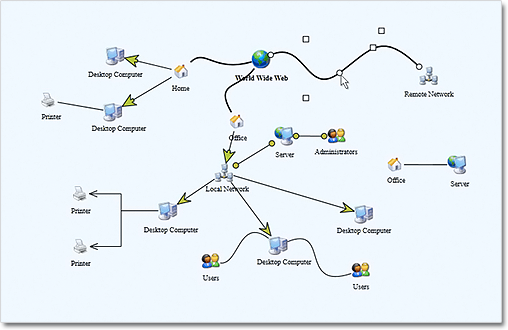
Labels at diagram links

Labels at diagram links

Miscellaneous

  • the SetSelfLoopShape event is raised when a link becomes a self-loop, giving you a chance to set
    a custom shape for the link.
  • LinkLabels are now copied by DiagramLink copy constructor and clipboard methods.
  • Fixed LinkLabel positioning along Bezier links.
  • as well othrer new features – see further details here.

API changes
We have made a few API changes, please check them at the news page in the Diagramming for WPF discussion board.

You can download the trial version of the software from this link:

Download MindFusion.Diagramming for WPF 3.0.5

The download contains all runtime libraries of the control, various samples for different .NET versions, extensive desktop documentation and step-by-step tutorials.

If you face difficulties installing or using Diagramming for Wpf, please contact MindFusion support team per e-mail or phone. You can also use the forum or help desk. Most support inquiries are answered within hours of receiving them.

About MindFusion.Diagramming for Wpf: Designed and developed to be easy to integrate, use, and customize, this native WPF component places at your disposal every single feature you would ever need to create flowcharts, diagrams, graphs, schemes, DB relationships, trees and many more. Its long list of style options gives you complete control over the appearance of the diagram. With a set of eight automatic layouts you are sure to choose the best arrangement for your items and make the diagram easy to comprehend.

The control boasts a long list of events, properties and methods for user interaction, item creation,
data input and output. You can read the full features list here. The online demo shows samples that demonstrate various capabilities of the control. The licensing scheme and prices are uploaded at the buy page. Source code is also available.
MindFusion Pack for WPF 2014.R1

MindFusion has released its Pack for WPF 2014.R1. Here is an overview of the new features:

Support for Visual Studio 2013
The installer can create a toolbox palette in VS2013 for the components and optionally installs VS2013 sample projects.

diagram16x16MindFusion.Diagramming

Import of Visio 2013 files
The new Visio2013Importer class can import *.vsdx files, which were created with Microsoft Visio 2013. The importer requires a reference to the MindFusion.Diagramming.Wpf.VisioImport.dll assembly. You can use the various overloads of the Import method to import the Visio drawing into a DiagramDocument, whose pages correspond to the Visio pages or into a single Diagram, whose content
is merged from all important pages.

Zoom control
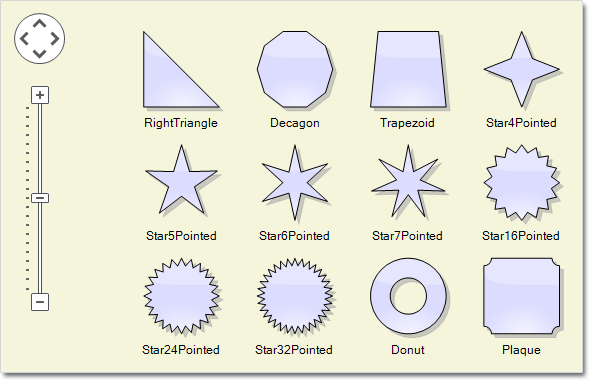
The ZoomControl class lets the users change interactively the current zoom level and scroll position of a Diagram or DiagramView. In order to use it, you should add a Zoom control to the window, place it anywhere over the target diagram and set the control’s Target property to that diagram or view. The Zoom control offers numerous customization properties.

Miscellaneous

  • Enable the AllowRenamePages property of TabbedDiagramView to let users rename a DiagramPage interactively by clicking on its tab.
  • Several new shapes added for better compatibility with Visio 2013 basic stencil: RightTriangle, Decagon, Trapezoid, Star4Pointed, Star5Pointed, Star6Pointed, Star7Pointed, Star16Pointed, Star24Pointed, Star32Pointed, Donut, Plaque.
  • DefaultEncoding and AutoDetectEncoding properties added to PdfExporter.
  • and much more.
The Zoom control and the new predefined shape nodes

The Zoom control and the new predefined shape nodes

You can read details about the new features of the pack at the news page on the forum. The trial version is available for direct download from this link:

Download MindFusion.Pack for WPF 2014.R1

About MindFusion.Wpf Pack: A set of advanced WPF components that help you build your business application easy and on time. The tools provide you with a complete set of features to create, edit and render complex flowcharts, charts, diagrams, calendars, schedules, maps and reports. A set of gauges and UI elements is also included. Each component offers various samples, tutorials and detailed documentation. The controls offer simple and intuitive API, completely customizable appearance, numerous input/output options and a rich event set. Each tool has been thoroughly tested to guarantee that you and your application get the high quality and performance you deserve.

You can read more about the capabilities of each component at its features page:

Prices and licenses are explained in details at the buy page. We offer permanent discounts to certain types of commercial as well non commercial organizations – check here if you qualify.

MindFusion Pack for WPF 2013.R2

MindFusion has just released Pack for WPF 2013.R2, which adds the following new features to the components in the pack:

chartMindFusion.Charting

Bubble Chart Control

You can now create beautiful bubble charts with the new BubbleChart class. The bubble chart can hold unlimited number of BubbleSeries. The appearance of the chart is completely customizable with various properties for the pens, brushes, labels and the other visual settings of the chart.

A bubble chart in Wpf.

A bubble chart in Wpf.

3D Charts Improvements

All 3D charts derive now from a new base class – the Chart3D class. This way the control has parallel 2D and 3D chart hierarchies. The 3D chart classes support most of the properties of the 2D classes.

Hit testing in 3D has been improved. The Chart3D.HitTest method returns a ChartHitTestResult3D object, which contains information about the result of the hit-testing operation and a list of ChartElement objects available in the 2D version.

The SurfaceChart exposes a variety of new properties including CloseModelFigure, Effect3D, SurfaceType. The SurfaceType property now enables the surface chart to display its associated data as scatter marks, rather than a surface. You can customize the scatter marks through the new properties in the SurfaceSeries class – ScatterSize, ScatterType, and ShowScatterFlag.

Chart Effects

You can now create visual effects in all 2D charts with the ChartEffect property.

Miscellaneous

diagram16x16MindFusion.Diagramming

Display 3D Graphs

You can use the new DiagramView3D control to display the elements of a diagram in 3D space. Assign the Diagram that should be displayed in this view to the Diagram property. DiagramView3D adds a 3D model to the scene for each node or link of the specified diagram. The positions of nodes in 3D coordinate space are specified via the Position3D attached property.

The new 3D graph viewer

The new 3D graph viewer

Import of OpenOffice Draw Files

Use the new DrawImporter class to import .odg files, which you have created with the OpenOffice Draw vector graphics editor. In order to use it, you must add a reference to the MindFusion.Diagramming.Wpf.DrawImport.dll assembly. Various overloads of the Import method can be used to import the OpenOffice drawing into a DiagramDocument whose pages correspond to the Draw pages, or into a single Diagram whose content is merged from all imported pages.

Import of Visio 2003 XML drawings

You can now import Visio 2003 XML Drawing files (*.vdx) into the Diagramming for Wpf wit the new VisioImporter. The standard Visio flowchart shapes, as well as most of the UML and Database entity shapes are imported to their closest representation in the MindFusion.Diagramming object model. The Visio connectors are imported as DiagramLink objects, preserving the relationship between the connected nodes. The Import method imports all Visio pages into a DiagramDocument, creating a DiagramPage for each page from the *.vdx file. The GetPageCount method gives you how many pages there are in a Visio document. Call the ImportPage method to import just a single page.

Miscellaneous

  • Improved appearance of hatch patterns used to draw frames for several HandlesStyle types.
  • Added support for loading HatchBrush objects from files saved by Windows Forms and ASP.NET versions of the diagramming control.
  • AttachTo overloads that attach nodes to link segments or control points now allow specifying negative index values.
  • Negative values are interpreted as relative to the last point or segment, regardless of the current number of link segments. For example, -2 denotes the second-to-last point or segment.
  • And much more.

You can find more about the new features of the components at the forum. Here is a link to download the trial version:

Download MindFusion.Pack for WPF 2013.R2

About MindFusion.Wpf Pack: A set of advanced WPF components that help you build your business application easy and on time. The tools provide you with a complete set of features to create, edit and render complex flowcharts, charts, diagrams, calendars, schedules, maps and reports. A set of gauges and UI elements is also included. Each component offers various samples, tutorials and detailed documentation. The controls offer simple and intuitive API, completely customizable appearance, numerous input/output options and a rich event set. Each tool has been thoroughly tested to guarantee that you and your application get the high quality and performance you deserve.

You can read more about the capabilities of each component at its features page:

Prices and licenses are explained in details at the buy page. We offer permanent discounts to certain types of commercial as well non commercial organizations – check here if you qualify.

Diagramming for WPF 3.0.2

MindFusion has just released Diagramming for Wpf programming component v. 3.0.2. Most of the newly added features are requested by our customers. Here are details:

Visio 2003 Import

The new VisioImporter lets you import Visio 2003 XML Drawing files (*.vdx) into WpfDiagram. You can import all standard Visio flowchart shapes as well most of the UML and Database entity shapes. The shapes are imported to their closest representations in the MindFusion.Diagramming for Wpf object model. The relationships between the objects are preserved and the Visio links are imported as DiagramLink objects. Additionally, most of the attributes of the Visio objects such as text, text format, fill and line colour and style are preserved. WpfDiagram raises an event for each imported node and you can set the shape node if it is not recognized by the control or you want to change the shape.

The Import method imports all Visio pages into a DiagramDocument. A DiagramPage is created for each page from the VDX file. The new GetPageCount and ImportPage methods let you determine how many pages are in the Visio document and import only a single one. You can import all Visio pages into a single diagram.

It is easy to import a  diagram from Visio.

It is easy to import a diagram from Visio.

Miscellaneous

  • The overload methods of AttachTo that attach node to link segments or control points, now let you specify negative index values. Negative values are interpreted as relative to the last point or segment, regardless of the current number of link segments.
  • The handling of Clip paths in PdfExporter is improved.
  • You can export the swimplane grid to Visio by setting the ExportLanes property of the VisioExporter.
  • The Copy method lets you copy text attributes between objects that implement the ITextAttribute interface, such as diagram items table cells, tree items.
  • as well other new features – check the full list here.
An arrow is shaped by its control points.

An arrow is shaped by its control points.

You can download the trial version of the software from this link:

Download MindFusion.Diagramming for WPF 3.0.2

The download contains all runtime libraries of the control, various samples for different .NET versions, extensive desktop documentation and step-by-step tutorials.

If you face difficulties installing or using Diagramming for Wpf, please contact MindFusion support team per e-mail or phone. You can also use the forum or help desk. All support inquiries are answered within hours of receiving them.

About MindFusion.Diagramming for Wpf: Designed and developed to be easy to integrate, use, and customize, this native WPF component places at your disposal every single feature you would ever need to create flowcharts, diagrams, graphs, schemes, DB relationships, trees and many more. Its long list of style options gives you complete control over the appearance of the diagram. With a set of eight automatic layouts you are sure to choose the best arrangement for your items and make the diagram easy to comprehend.

The control boasts a long list of events, properties and methods for user interaction, item creation, data input and output. You can read the full features list here. The online demo shows samples that demonstrate various capabilities of the control. The licensing scheme and prices are uploaded at the buy page. Source code is also available.