Diagramming for WPF 3.0.1

MindFusion has released a new version of its Diagramming component for Wpf. Most of the new features are requested by customers. Here are details:

Preserve order in tree layout
You can set the Balance property of the TreeLayout to Preserve to keep the original geometric order of child nodes when arranging them under their parent. You can use this to arrange tree branches in a specific order by first positioning them in increasing horizontal or vertical positions.

The tree layout.

The tree layout.

Selection improvements

  • When you set the Behavior property to SelectOnly users can select existing items, but not modify them or draw new ones.
  • Use the SetsDirtyFlag property of the Selection class to specify whether the Dirty flag should be set when selection changes.
  • SelectionStartMoving event is raised when the user begins moving multiple selected items.
  • You can use the ToggleSelection modifier key to select or deselect items by clicking, but selection via lasso rectangle is disabled.
Container nodes

Container nodes

Miscellaneous

You can find details about this release at the news page in the MindFusion forum. A trial version is available for immediate download from the following link:

Download MindFusion.Diagramming for WPF 3.0.1

The download contains all runtime libraries of the control, various samples for different .NET versions, extensive desktop documentation and step-by-step tutorials.

If you face difficulties installing or using Diagramming for Wpf, please contact MindFusion support team per e-mail or phone. You can also use the forum or help desk. All support inquiries are answered within hours of receiving them.

About MindFusion.Diagramming for Wpf: Designed and developed to be easy to integrate, use, and customize, this native WPF component places at your disposal every single feature you’d ever need to create flowcharts, diagrams, graphs, schemes, DB relationships, trees and many more. Its long list of style options gives you complete control over the appearance of the diagram. With a set of eight automatic layouts you are sure to choose the best arrangement for your items and make the diagram easy to comprehend.

The control boasts a long list of events, properties and methods for user interaction, item creation, data input and output. You can read the full features list here. The online demo shows samples that demonstrate various capabilities of the control – click here. The licensing scheme and prices are uploaded at the buy page. Source code is also available.

Custom colors in maps

In a series of blog posts, we will explore various usage scenarios for MindFusion software components, based mostly on technical support questions we are frequently asked. Today’s post shows how to assign colors to map regions, depending on the value of a field in the map’s associated DBF database. This particular example assigns darker shades of red to countries with larger populations.

Let’s load an ESRI map file and its database into the map view’s BaseMap property, which provides a shortcut for setting a map in the first layer of the view:

// load the map file and dbf database
var map = mapView.BaseMap = Map.FromFile(
	"ne_50m_admin_0_countries.shp", true, "NAME");
var db = map.Database;
var layer = mapView.Layers[0];

Next, create an array of population threshold values, which will correspond to different values in the layer’s color palette:

// specify threshold values that trigger more saturated colors
var m = 1000000;
var populationThreshold = new[]
{
	0, 1*m, 5*m, 10*m, 50*m, 100*m, 1000*m
};

int numColors = populationThreshold.Length;

Define the map colors as shades of red:

// set the layer palette with a color for each threshold value
layer.FillColors = new Color[numColors];
layer.FillColors[0] = Color.WhiteSmoke;
for (int i = 1; i < numColors; i++)
{
	layer.FillColors[i] = Color.FromArgb(
		255,
		255 - 255 / (numColors - i),
		255 - 255 / (numColors - i));
}

Iterate over the database records, find their corresponding shape from the ESRI .shp file, and read the population field:

// for each database record, read population field and set color
for (int i = 0; i < db.Rows.Count; i++)
{
	var countryShape = map.Shapes[i];
	var population = float.Parse(db.Rows[i]["POP_EST"]);
	…
}

Finally, determine the shape’s color from the maximal threshold value smaller than the country’s population:

	for (int c = numColors - 1; c >= 0; c--)
	{
		if (population > populationThreshold[c])
		{
			countryShape.Color = c;
			break;
		}
	}

The resulting custom-colored map is shown in this screenshot:

Colored map
Labels for countries are displayed dynamically e.g. they are hidden if space is not enough. In the sample pictured above you will see all labels if you zoom in the map.

A VS2008 solution that includes the full source code and map files can be downloaded here:
https://mindfusion.dev/_samples/ColorCoding.zip

Enjoy!

Charting for WPF 1.8

MindFusion has released a new version of its Charting component for Wpf with the following new features:

Styles and Themes
Styles define the appearance of individual chart elements such as the axis, the series and the legend. Each ChartTheme contains a collection of styles and defines the appearance of the whole chart. The new version lets you:

  • create themes based on the appearance of an existing chart;
  • create themes with the ThemeEditor tool;
  • save themes to XML files;
  • load themes from XML files;
  • use a number of predefined themes.

The “Working with Themes” tutorial gives detailed information on how to create, save, load and edit themes with MindFusion.Charting for WPF.

The green theme

The green theme

Improved Design Time Support
You can now edit all collection properties, including the Series collection, the brushes and strokes in design time through the property grid.

Axis Intervals
The new AxisSettings.IntervalCount property lets you specify the exact number of intervals at the axis. In such case, the control does not use the Interval property and calculates the value of each interval based on AxisSettings.Min, AxisSettings.Max and AxisSettings.IntervalCount properties.

You can read further details about the release and the other new features at the news section in the Charting forum. A trial version is available for download from here:

Download MindFusion.Charting for WPF 1.8 Trial Version

You are welcome to contact us with any questions, problems or inquiries about the Charting for Wpf control or any other of our products. MindFusion has always put special emphasis on providing excellent customer support and we usually answer your inquiries in a few hours of receiving them.

About MindFusion.Charting for Wpf: A programming component that combines powerful charting capabilities with an elegant API and easy use. Among the features of the control are fully customizable grid, positive and negative values on all chart axes, 3D charts, gauges and many more – read a detailed list here.

The control provides detailed documentation and various samples that demonstrate how to customize every type of chart. It supports a wide range of 2D and 3D charts including bar, line, radar, bubble pie etc. You can add tooltips, define themes, perform hit testing, zoom and more.

MindFusion Pack for Silverlight 2013.R1

MindFusion has released a new version of its Silverlight controls suite. There are new features in many of the controls, here are details:

Visual Studio 2012 Support

New assemblies for all components targeting Silverlight 5 are available. Additionally all samples provide versions for Visual Studio 2012.

chartMindFusion.Charting

Radar and Polar charts
The Silverlight charting control adds a brand new types of charts – radar and polar charts. They support unlimited number of data series, 4 label types at the inner and outer axes, spiderweb, scatters and many more.
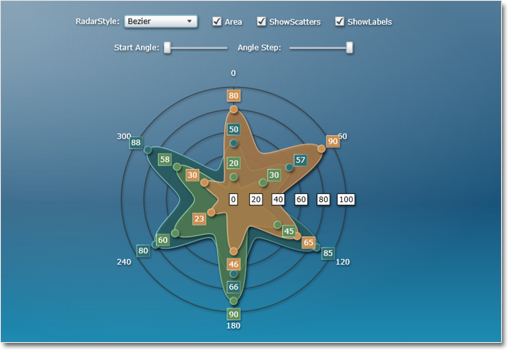
Radar chart

Radar chart

Hit testing
The new HitTest method returns a list of all ChartElement objects, which contain the specified point. Each chart type has its own ChartElement-derived class, which exposes properties for the hit object – data, labels, value etc.

Visual Effects
All chart types support the System.Windows.Media.Effects.DropShadowEffect and System.Windows.Media.Effects.Blur effect. Use the Effect property to specify the chosen effect.

diagram16x16MindFusion.Diagramming

Node Effects
You can apply to nodes two visual effects, represented by the GlassEffect and AeroEffect classes. Effects can be added, removed or modified at any time and this will immediately reflect on the diagram. Effects of different types can be applied simultaneously.

Themes and Theme Editor
A theme in DiagramLite is a set of styles, each associated with a specific item type. When the theme is applied to a diagram, the styles registered in the theme affect all objects of their associated type. Styles are associated with item types within the theme through the RegisterStyle method. The package also includes a Theme Editor tool that provides simple visual environment for theme creation and modification. There are also several predefined themes available in the Themes subfolder of the installation root folder.

Diagram documents and tabbed views
The DiagramDocument class represents a collection of diagram pages or sheets, represented by DiagramPage objects. New pages can be added to the document and existing pages can be removed and reordered via the Pages collection.

The new TabbedDiagramView can be used to display DiagramDocument objects. The view displays a tab for each page in the document. You can change the active page, add and remove pages as well rearrange them by dragging with the mouse.

One-way graph Layout
The OneWayLayout class ensures that links enter into nodes from the same general direction and exit them from the opposite side. If the graph contains cycles, some links bend around the nodes to keep the enter/exit direction consistent. The algorithm aims to minimize the number of such links.

One Way Graph Layout

One Way Graph Layout

Multiple labels per link
The LinkLabel class allows multiple captions to be displayed for a single DiagramLink object. Link labels provide a set of properties allowing full customization of their display and positioning. The labels support automatic arrangement.

Layers
Items can now be assigned to layers, and layers can be hidden, locked or moved up/down in the Z order as a group. Set the LayerIndex property of items to associate them with layers in the Diagram.Layers collection. The Layer objects provide Visible, Locked and ZIndex properties, which affect all items in the respective layer. Layers also expose a Title property shown in the LayerListView control.

Layer list control
The LayerListView control provides user interface for working with Layer objects. The control displays a list of all layers in a specified Diagram with a title and an overview area, and also allows editing of layer’s Title, Visible and Locked properties and choosing the Diagram’s currently active layer.

Magnifier
The new magnifier tool lets you interactively zoom in (or out) portions of the diagram by holding down a modifier key or pressing a mouse button. The magnifier’s zoom factor and size are
customizable.

The Magnifier Tool

The Magnifier Tool

Report-16x16MindFusion.Reporting

Side-By-Side Containers
You can arrange items in the report parallelly by putting them inside the new SideBySideContainer report item. One of the uses is to display two (or more) data ranges next to each other.

Miscellaneous

  • New DefaultEncoding property in PdfExporter;
  • New Median aggregate function;
A sample report

A sample report

Calendar-16x16MindFusion.Scheduling

Improved item presenter
The ItemPresenter class now provides the start and end time of the represented item fragment through the new StartTime and EndTime properties. In addition, derived classes can override the new OnStartTimeChanged, OnEndTimeChanged, and OnItemPropertyChanged methods to get notified when the StartTime or EndTime properties change or when any property of the underlying item changes.

Improved recurrence
The Recurrennce class exposes a new event – ValidateOccurrence, which can be used to validate and customize the occurrences of a recurrence pattern.
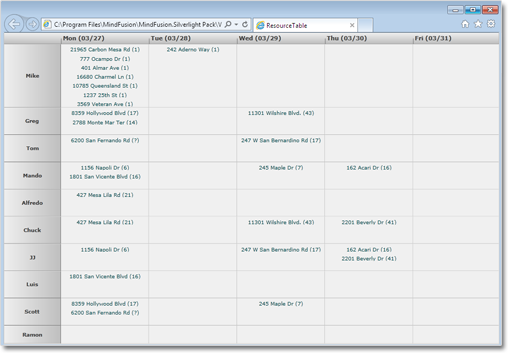
A sample schedule

A sample schedule

You can read further details about the release at the forum. A trial version is available for download from here:

Download MindFusion Silverlight Pack R1.2013

Technical Support
You are welcomed to post your questions at the forum section of the respective product. You can also use the help desk or the support e-mail. MindFusion puts special effort in providing fast and competent technical support to everyone using our products.

About MindFusion.Silverlight Pack: A set of advanced Silverlight components that help you build your business application easy and on time. The tools provide you with a complete set of features for creating, editing and rendering complex flowcharts, charts, diagrams, calendars, maps, schedules and reports. A set of gauges and UI elements is also included. Each component offers various samples, tutorials and detailed documentation. The controls offer simple and intuitive API, completely customizable appearance, numerous input/output options and a rich event set. Each tool has been thoroughly tested to guarantee that you and your application get the high quality and performance you deserve.

MindFusion Diagram Viewer Library for Android

You can show now your diagrams and flowcharts on any Android device. With MindFusion DiagramViewer library for Android you can load any diagram, created by any MindFusion diagramming component and exported to XML. Currently, the diagram viewer supports the following item types:

  • ShapeNode
  • ContainerNode
  • TableNode
  • TreeViewNode
  • DiagramLink
Diagrams in Android mobile devices

Diagrams in Android mobile devices

The library includes all model classes and properties from MindFusion’s Java diagramming library. This provides your Android applications with access to the loaded links and nodes and their data properties, along with methods for simple hit testing from touch events. Here is a link to the online documentation of the Java diagramming component:

MindFusion.Diagramming for Java online reference.

MindFusion diagram viewer for Android is free of charge for anyone with a license for any MindFusion.Diagramming component – you can learn more about the tools here.

We have prepared a deteiled guide on how to use the library in an Android application. You can read the tutorial from here:

Tutorial: How to Render a Diagram in an Android Application