Real-time Chart: Amplification Plot

MindFusion.RealTimeCharting for WPF assembly lets you visualize huge (and by that we mean huge) amounts of data with no special load on the machine it runs on. We drew inspiration from a popular chart in molecular biology – Real-time PCR, which:

can provide a simple and elegant method for determining the amount of a target sequence or gene that is present in a sample.

More on the topic here.

Since we self-generate our data, the result graphics are not that much the real thing but they demonstrate the algorithm of building the chart pretty well. Let’s start:

1. Create the chart

Drag the RealTimeChart from the toolbox or add a reference to the MindFusion.RealTimeCharting.Wpf assembly. The chart has no initial data so we start with a simple X-axis on the screen. We name our chart “rtChart”.

2. Customizing the X-axis

The X-axis is accessible via the rtChart.XAxis property. It exposes many appearance settings, from which we start with Interval, Length and Origin – they will define our axis. When data accumulates, the initial axis labels shall be replaced with their updated values.

   rtChart.XAxis.Title = "Cycle";
   rtChart.XAxis.Interval = 2;
   rtChart.XAxis.Length = 50;
   rtChart.XAxis.Origin = 0;
   rtChart.XAxis.LabelFormat = "0";
   rtChart.XAxis.PinLabels = false;

It’s worth noting that we don’t pin labels e.g. they will move along the axis as new data is added. We need no trailing zeros, so the LabelFormat is “0”.

3. The Y-axes

There is no limit on how many Y-axis we will create. In our sample we will use two: one at each side of the chart plot area. We need two instances of the Axis class, which we add to YAxisCollection and Y2AxisCollection respectively. Before we add them, we set their appearance. We want tick marks and rotated title. Note that we align the second axis (Y2) to the right.

   Axis yAxis = new Axis();
   yAxis.Origin = 0.0;
   yAxis.Length = 1;
   yAxis.Interval = 0.1;
   yAxis.Title = "ΔRn";
   yAxis.TitleRotationAngle = -90.0;
   yAxis.TitleFontFamily = new FontFamily("Verdana");
   yAxis.LabelFontFamily = new FontFamily("Verdana");
   yAxis.TickLength = 5;
   yAxis.TitleOffset = 10;
   rtChart.YAxisCollection.Add(yAxis);          

   yAxis = new Axis();
   yAxis.Origin = 0.0;
   yAxis.Length = 100;
   yAxis.Interval = 10;
   yAxis.Title = "Fluorescene";
   yAxis.TitleRotationAngle = -90.0;
   yAxis.TitleFontFamily = new FontFamily("Verdana");
   yAxis.LabelFontFamily = new FontFamily("Verdana");
   yAxis.TickLength = 5;
   yAxis.TitleOffset = 10;
   yAxis.LabelHorizontalAlignment = HorizontalAlignment.Right;
   rtChart.Y2AxisCollection.Add(yAxis);

4. Chart series

We need four series – two of them will be bound to Y and two – to Y2. It’s important to note that axes must be initialized before the series, because each series is associated with a given Y-axis when created.

Each chart series is an instance of the Series class. We want to show scatters at each series – for that we use the ScatterType property. Since we plan to show a legend, it’s important to set the Title of each series – because this title will be used as a legend label. Here is sample code for the first series:

  series1 = new Series(rtChart.YAxisCollection[0])
  {
      Stroke = new SolidColorBrush(Colors.Green),
      ScatterStroke = new SolidColorBrush(Colors.Green),
      Fill = new SolidColorBrush(Colors.Green),
      ScatterType = ScatterType.Diamond,
      Title = "Sample 1",
      TitleFontFamily = new FontFamily("Verdana"),
      TitleFontSize = 12

   };

    .......
   rtChart.SeriesCollection.Add(series1);

5. Data

Data is added directly to the Series.Data property. You can add a batch of points or one point at a time. The property requires that you add a Point e.g. you must set the X and Y values simultaneously:

Point[] points1 = new Point[clusterSize];

//generate some dummy data
...

series1.Data.AddRange(points1);
rtChart.Commit(minNewX);

Don’t forget to call the Commit() method in one of its overloads – it signals to the chart that new data has been added and refresh is needed.

6. Final adjustments

We want a legend and we turn on ShowLegend. The initial result is a legend in 4 rows, which does not look beautifully on our chart. We plat for a while with LegendWidth and LegendHeight and come up with a satisfactory outlook for our legend – in two columns, centered below the plot area.

Adding a tooltip is also easy – we set ShowFallbackTooltip to true. Since the chart might have numerous Y-axis we must choose, which axis the tooltip is bound to. In our case it’s the first one:

    rtChart.TooltipVisibility = Visibility.Visible;
    rtChart.ShowFallbackTooltip = true;
    rtChart.TooltipAxis = rtChart.YAxisCollection[0];

    rtChart.ShowLegend = true;
    rtChart.LegendHeight = 70;

We adjust the grid according to the data we have:

    rtChart.MajorGridSizeY = 50;
    rtChart.MajorGridSizeX = 2;

7. That’s it

Here is the final result:

Real-time chart: amplification plot sample.

Real-time chart: amplification plot sample.

Of course, there are many other settings and possibilities in the control. You can download the sample and expand its functionality and appearance:

Real-time Chart – Amplification Plot Sample Download

MindFusion.RealTimeCharting for WPF is part of MindFusion.Charting for WPF component, which also includes MindFusion.Gauges for WPF. Check the trial version for more practical, beautiful and easy to build charts and gauges.

About MindFusion.RealTimeCharting for WPF: A WPF programming component, which has been designed and developed to render real-time charts with huge amounts of data in a fast and efficient manner. The component uses innovative approach to draw the chart graphics, which forgoes the traditional constructing of a tree with the visual elements in WPF. This way CPU load remains minimal and graphics of tens of thousands of points are rendered with impressive speed. The tool supports unlimited number of Y and Y2 axes, legend, tooltip, background image, grid and more.

About MindFusion.Charting for Wpf: A programming component that combines powerful charting capabilities with an elegant API and easy use. Among the features of the control are fully customizable grid, positive and negative values on all chart axes, 3D charts, gauges and many more – read a detailed list here.

The control provides detailed documentation and various samples that demonstrate how to customize every type of chart. It supports a wide range of 2D and 3D charts including bar, line, radar, bubble pie etc. You can add tooltips, define themes, perform hit testing, zoom and more.
Combine layout algorithms

Apply TreeLayout twice to arrange a genealogy tree

In a series of posts we’ll explore ways to combine graph layout algorithms for various purposes, such as improving layout speed or achieving specific layout constraints.

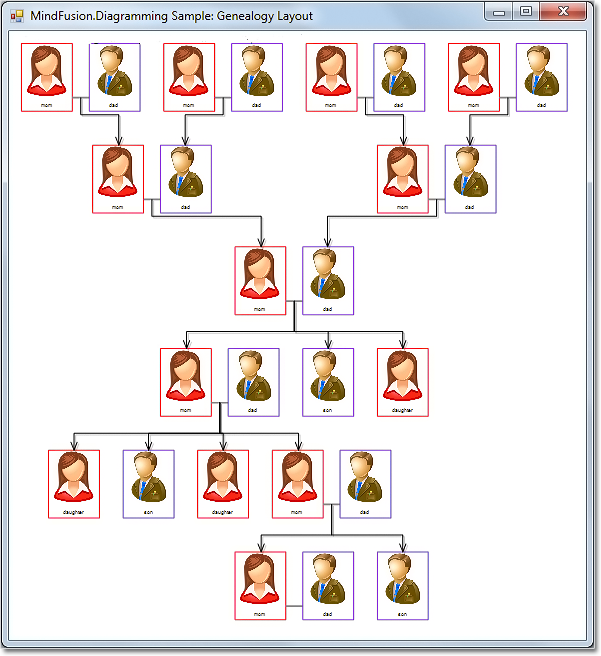
In this example we’ll show how to apply two TreeLayout instances with different settings to arrange a genealogy tree. The genealogy tree is focused on specific person, with several levels of ancestors drawn above and descendants drawn below. A Visual Studio sample project containing the code from this post is available for download here:

GenealogyLayout.zip

As a start, let’s define a new node class that will draw a person’s photo and name inside a frame, along with their partners’. This will simplify our layout code since we won’t have to take care of keeping partner nodes close to each other:

class GenealogyNode : DiagramNode
{
	public List Partners { get; set; }

	public override void DrawLocal(IGraphics graphics, RenderOptions options)
	{
		float relationLinkLen = Bounds.Width / 7;
		int relations = Partners.Count - 1;
		float personViewWidth = Bounds.Width - relations * relationLinkLen;
		personViewWidth /= Partners.Count;

		var rect = GetLocalBounds();
		rect.Width = personViewWidth;
		for (int i = 0; i < Partners.Count; i++)
		{
			DrawPerson(Partners[i], graphics, rect);

			if (i < Partners.Count - 1)
			{
				float rx = rect.Right;
				float ry = rect.Y + 4 * rect.Height / 5;
				rect.X += personViewWidth + relationLinkLen;
				graphics.DrawLine(Pens.Gray, rx, ry, rect.X, ry);
			}
		}
	}

	public override void DrawShadowLocal(IGraphics graphics, RenderOptions options)
	{
	}

	void DrawPerson(Person person, IGraphics graphics, RectangleF rect)
	{
		const float labelHeight = 5;
		const float padding = 3;

		// draw name
		var labelRect = RectangleF.FromLTRB(
			rect.Left,
			rect.Bottom - labelHeight,
			rect.Right,
			rect.Bottom);

		graphics.DrawString(person.Name,
			EffectiveFont, Brushes.Black, labelRect,
			new StringFormat { Alignment = StringAlignment.Center });

		// draw image
		var imageRect = rect;
		imageRect.Height -= labelHeight + padding;

		Utilities.DrawImage(graphics, person.Image, imageRect, ImageAlign.Fit);

		// draw frame
		var frameColor = person.Gender == Gender.Female ?
			Color.Red : Color.BlueViolet;
		var framePen = new System.Drawing.Pen(frameColor, 0);
		graphics.DrawRectangle(framePen, rect);
		framePen.Dispose();
	}
}

Alternatively, we could draw a single person per node instead, placing partners’ nodes close to each other, grouping them using AttachTo method, and later running TreeLayout with its KeepGroupLayout property enabled.

Now to generate a sample tree, we’ll define recursive methods that will create specified number of ancestor pairs (GenerateAncestors) and create random number of descendants (GenerateDescendants):

void GenerateAncestors(GenealogyNode node, int levels)
{
	if (levels == 0)
		return;
	for (int i = 0; i < 2; i++)
	{
		var p = AddPair();
		var link = diagram.Factory.CreateDiagramLink(p, node);
		link.DestinationAnchor = i;
		link.OriginAnchor = 2;
		GenerateAncestors(p, levels - 1);
	}
}

void GenerateDescendants(GenealogyNode node, int levels)
{
	if (levels == 0)
		return;
	int children = random.Next(1, 5);
	for (int i = 0; i < children; i++)
	{
		int r = random.Next(0, 3);
		if (r == 2)
		{
			var p = AddPair();
			var link = diagram.Factory.CreateDiagramLink(node, p);
			link.OriginAnchor = 2;
			link.DestinationAnchor = 0;
			GenerateDescendants(p, levels - 1);
		}
		else if (r == 1)
		{
			var p = new Person { Name = "daughter", Gender = Gender.Female, Image = fImage };
			var childNode = AddNode(p);
			diagram.Factory.CreateDiagramLink(node, childNode);
		}
		else if (r == 0)
		{
			var p = new Person { Name = "son", Gender = Gender.Male, Image = mImage };
			var childNode = AddNode(p);
			diagram.Factory.CreateDiagramLink(node, childNode);
		}
	}
}

GenealogyNode AddPair()
{
	var p1 = new Person { Name = "mom", Gender = Gender.Female, Image = fImage };
	var p2 = new Person { Name = "dad", Gender = Gender.Male, Image = mImage };
	return AddNode(p1, p2);
}

GenealogyNode AddNode(Person p)
{
	var bounds = new RectangleF(0, 0, 30, 40);

	var node = new GenealogyNode();
	node.Bounds = bounds;
	node.Partners = new List { p };
	node.AnchorPattern = AnchorPattern.TopInBottomOut;
	diagram.Nodes.Add(node);
	return node;
}

GenealogyNode AddNode(Person p1, Person p2)
{
	var bounds = new RectangleF(0, 0, 70, 40);

	var node = new GenealogyNode();
	node.Bounds = bounds;
	node.Partners = new List { p1, p2 };
	node.AnchorPattern = PairPattern;
	diagram.Nodes.Add(node);
	return node;
}

Finally we run TreeLayout twice with specified root node, arranging ancestor nodes above the root and descendant nodes below it, creating the genealogy drawing shown below:

private void GenealogyForm_Load(object sender, EventArgs e)
{
	var root = AddPair();
	GenerateAncestors(root, 2);
	GenerateDescendants(root, 3);

	var l1 = new TreeLayout();
	l1.ReversedLinks = true;
	l1.Direction = TreeLayoutDirections.BottomToTop;
	l1.Anchoring = Anchoring.Keep;
	l1.LevelDistance *= 2;
	l1.NodeDistance *= 1.4f;
	l1.LinkStyle = TreeLayoutLinkType.Cascading3;
	l1.Arrange(diagram);

	var l2 = new TreeLayout();
	l2.Root = root;
	l2.KeepRootPosition = true;
	l2.Anchoring = Anchoring.Keep;
	l2.LevelDistance *= 2;
	l2.NodeDistance *= 1.4f;
	l2.LinkStyle = TreeLayoutLinkType.Cascading3;
	l2.Arrange(diagram);

	diagram.ResizeToFitItems(5);
	//diagramView.ZoomToFit();
}

genealogy tree layout

The code above uses MindFusion’s .NET API and can be used with Windows Forms, WPF, Silverlight and ASP.NET diagramming components. The Java API for Android and desktop Swing application will look similar, with setter method calls instead of property assignments.

You can download the trial version of any MindFusion.Diagramming component from this page.

Enjoy!

Diagramming for Windows Forms, V6.3.1

MindFusion has just released a new version of its popular Diagramming for WinForms component. Here are details about the new features:

Improved arrowhead rendering
Arrowhead rendering has been improved as you can see in following new vs. old version image.

  • arrowheads are rendered as a single path when possible and several arrowhead Shape definitions has been changed to implement mitered joints when HeadPen is set to a thick pen.
  • the point where end segments connect to arrowheads can be specified via the Shape.LinkSegmentInset property. Shape definitions from the Arrowheads class set it to suitable default value. This allows using transparent or semi-transparent brushes without seeing the link line drawn behind arrowheads.
  • arrowhead shadows are no longer filled if the link’s EffectiveBrush is null or fully transparent.
New vs. old arrowheads

New vs. old arrowheads

Miscellaneous

  • VisioExporter export speed has been improved greatly for large diagrams.
  • For consistence with MindFusion libraries for other platforms, BackBrush in default diagram style has been changed to white brush.
  • Improved DiagramLink rendering speed.
  • Multiple-resize of rotated nodes fixed to apply same offsets in nodes’ local coordinate system.
  • Fixed KeepInsideParent constraint for rotated parent nodes.

You can download the trial version from the link below:

Diagramming for WinForms, V6.3.1

If you have questions or run into problems using the component you can use the Diagramming for WinForms forum, the help desk or write us at support@mindfusion.dev. Our support team will be pleased to help you.

About MindFusion.Diagramming for WinForms: A programming component that provides any WinForms application with a full set of features for creating and customizing all types of diagrams, flowcharts, schemes, hierarchies, trees, graphs etc. The control provides numerous ways to save and load a diagram, six auxiliary controls and more than 12 automatic graph layout algorithms. Diagram elements include scrollable tables, container nodes, multi-segment arrows, custom diagram item types and many more. Further details here.

Diagramming for WinForms is a royalty-free component, clients get 12 month upgrade subscription when buying a license. The source code is also available for purchase. Visit the buy page for a list with the current license prices.

Charting for WPF, V1.9

MindFusion is pleased to announce a new release of Charting for WPF programming component. Here is an overview of the new features:

Real-time Chart
The RealTimeChart control is optimized to render animated line chart graphics of large amounts of data. That’s implemented by moving already rendered elements from the WPF visual tree to a cache bitmap, relying that new data is added incrementally rather than changing coordinates of old data points. The library also offers various customization options for the chart – scatters, multiple legends, multiple Y and Y2 axes, custom labels, tooltips, grid.

The real time chart.

The real time chart.

3D Charts

  • All 3D charts now support unlimited number of series.
  • New property Lights holds a collection of Light objects instead of the LightType property.
  • Detailed hit testing, which returns a ChartHitTestResult3D that contains the clicked 3D point, the normalized 3D point, a collection of chart elements (if found), and the nearest peak (in surface charts).
  • AllowMeshSelection property, which when enabled allows selection of mesh objects with a mouse click.
  • The MeshSelectionBrush sets the brush for the selection.
  • Behavior3D property, which lets you choose how the chart responds to mouse interactions.
  • Improved performance for all chart types.

Surface Charts

  • SurfaceType property, which sets whether scatters or surface is drawn.
  • SurfaceSeries.GroundLevelMargin property, which sets the GroundLevel-offset.
  • Each Series3D can be clipped in a given range with the ClipMinimum and ClipMaximum properties.
  • TextureType property sets the texture of the chart – Brush or ColorMap.
  • New ColorMapList property, which sets a Color map with arbitrary colors and offsets.
  • CloseModelFigure property, which closes the sides of the model if enabled.
A surface chart

A surface chart

Miscellaneous

  • ShowCrossHair renders a cross hair that will trace the mouse position over the plot area.
  • Enable the LineSeries.Curve property to draws lines as canonical splines.

You can read further details about the release and the other new features at the news section in the Charting forum. A trial version is available for download from here:

Download MindFusion.Charting for WPF 1.9 Trial Version

You are welcome to contact us with any questions, problems or inquiries about the Charting for Wpf control or any other of our products. MindFusion has always put special emphasis on providing excellent customer support and we usually answer your inquiries in a few hours of receiving them.

About MindFusion.Charting for Wpf: A programming component that combines powerful charting capabilities with an elegant API and easy use. Among the features of the control are fully customizable grid, positive and negative values on all chart axes, 3D charts, gauges and many more – read a detailed list here.

The control provides detailed documentation and various samples that demonstrate how to customize every type of chart. It supports a wide range of 2D and 3D charts including bar, line, radar, bubble pie etc. You can add tooltips, define themes, perform hit testing, zoom and more.

Combine layout algorithms

Use OrthogonalLayout to generate initial placement for SpringLayout

In a series of posts we’ll explore ways to combine graph layout algorithms for various purposes, such as improving layout speed or achieving specific layout constraints.

In this example we’ll show how to apply OrthogonalLayout as preprocessing step for SpringLayout used to minimize edge crossings. A problem with force-directed layout algorithms such as SpringLayout is that they can reach equilibrium of the simulated forces while there are link crossings present. However if the simulation starts from an initial layout that has minimal number of crossing, it will tend to reach balance without introducing new crossings. So we can use any of the layout algorithms used for arranging planar graphs (OrthogonalLayout, TriangularLayout, CascadingLayout) to create the initial configuration for SpringLayout.

OrthogonalLayout is designed to create planar drawings of graphs (having no crossing links at all if possible) where edge segments are either horizontal or vertical. For some types of diagrams, such as flowcharts, you might use OrthogonalLayout as is. However in many cases you might prefer SpringLayout, e.g. in order to achieve aesthetic criteria like uniform edge lengths, or to conform to accepted drawing conventions such as the one used to present state machines. So when you know your graphs are planar or close to planar, you can run OrthogonalLayout as pre-processing step, and then run the physical-force simulation using SpringLayout to achieve straight-line uniform length drawings:

void ApplySpringLayout(bool preArrange)
{
    if (preArrange)
    {
        var tl = new OrthogonalLayout();
        tl.Arrange(diagram);
    }

    var sl = new SpringLayout();
    sl.Randomize = false;
    sl.MinimizeCrossings = true;
    sl.IterationCount = 50;
    sl.Arrange(diagram);

    diagramView.ZoomToFit();
}

Here are several examples of the method results when called respectively with false (on the left side) and with true (on the right side of image). Note that for such small graphs SpringLayout will probably remove the crossings if left to run for more iterations, but in the general case and with larger graphs that’s not guaranteed.

1

2

3

The code above uses MindFusion’s .NET API and can be used with Windows Forms, WPF, Silverlight and ASP.NET diagramming components. The Java API for Android and desktop Swing application will look similar, with setter method calls instead of property assignments.

Enjoy!