MindFusion ASP.NET Pack 2014.R3 Released

MindFusion has just released a new version of its component suit for ASP.NET. The pack features a brand new mapping control and new features in most of the existing controls. Here are details:

DiagrammingMindFusion.Diagramming for WebForms

Zoom control
(not available in JavaApplet mode)
The ZoomControl class lets users change interactively the current zoom level and scroll position of a DiagramView. It’s very easy to set up a ZoomControl – just add the element to the page and set the control’s TargetId property to the id of a DiagramView. You can customize the control with the ZoomStep and ScrollStep properties. They let you specify how the diagram’s zoom level or scroll position are changed by the ZoomControl’s buttons. You can further customize the control’s appearance by setting properties such as Fill, BorderColor, CornerRadius and TickPosition.

The zoom control.

The zoom control.

Canvas mode improvements

  • The ShadowsStyle property is now supported in Canvas mode.
  • You can set the number of link segments from the client-side scripts by calling the setSegmentCount method.
  • The BackgroundImageAlign property is now supported in Canvas mode.
  • The TextPadding property of items is now supported in Canvas mode.
  • Nodes of all classes can be rotated.

Improved arrowhead rendering

  • Arrowheads are rendered as a single path when possible and several arrowhead Shape definitions have been changed to implement mitered joints when HeadPen is set to a thick pen.
  • You can specify the point where end segments connect to arrowheads via the LinkSegmentInset property of shapes.
  • Arrowhead shadows are no longer filled if the link’s EffectiveBrush is null or fully transparent.
New vs. old arrowheads rendering

New vs. old arrowheads rendering

Miscellaneous

  • VisioExporter export speed has been improved greatly for large diagrams.
  • Improved DiagramLink rendering speed.
  • Multiple-resize of rotated nodes fixed to apply same offsets in nodes’ local coordinate system.
  • The Brush property of LinkLabel class lets you set background color for link labels.

Map-16x16MindFusion.Mapping for WebForms

MindFusion.Mapping for WebForms comprises a .NET server control and a class library that provides your application with great features for loading, customizing and displaying any type of regional, national or world map. Easy to integrate and program, this control gives you the power to build the perfect map according to your needs with minimal time and efforts from your side. You can:

  • add labels to map elements
  • access database data associated with map elements
  • choose the color scheme
  • set decorative elements like images, icons etc.

Map data can be loaded from the popular ESRI Shapefile format and you have at your disposal an impressive variety of *.shp files, which give you valuable data for any country in the world as well for selected cities, rivers, roads and other geographic objects. Data for the attributes of map elements can be loaded from a DBF file associated with each map. The control supports multiple layers so you can show several maps in a single view.

The mapping control.

The mapping control.

MindFusion.UI for WebForms

Slider control
The new Slider control represents a range slider, which can be used to specify a numeric value constrained between a minimum and maximum.

A UI demo with the slider control.

A UI demo with the slider control.

The trial version is available for download from this link:

Download MindFusion ASP.NET Pack 2014.R3

About MindFusion.WebForms Pack: A set of WebForms components that add great variety of features to your ASP.NET application with a few mouse clicks. The pack contains advanced components for diagramming, scheduling, charting and UI (Accordion, ColorPicker, TabControl, Window, WindowHost, DockControl, Button, Slideshow, Zoom and more). Each tool boasts easy to learn and use API and is quickly integrated into any web application that targets the ASP.NET platform. The controls support numerous options for styling, data import / export, user interaction and offer rich event set. There are plenty of samples and step-by-step tutorials as well detailed documentation.

Use the features page for each of the tools to find out more about its capabilities and the numerous ways it can boost your performance and speed up the development of your application:

Visit the buy page for details on the licensing scheme and prices. If you have questions please contact us. We shall be happy to assist you.

Diagramming for Android, V1.1.1

MindFusio has recently released a new version of Diagramming for Android programming library. Here are details about the new features:

Improved arrowhead rendering

  • Arrowheads are rendered as a single path when possible and several arrowhead Shape definitions have been changed to implement mitered joints when HeadPen is set to a thick pen.
  • The point where end segments connect to arrowheads can be specified via the LinkSegmentInset property of shapes. Shape definitions from the ArrowHeads class set it to suitable default value. This allows using transparent or semi-transparent brushes without seeing the link line drawn behind arrowheads.
  • Arrowhead shadows are no longer filled if the link’s EffectiveBrush is null or fully transparent.
  • IntermediateShape is now also rendered for Bezier links.
Arrowheads

Arrowheads

Miscellaneous

  • Link segments and node borders are now drawn anti-aliased.
  • Improved DiagramLink rendering speed.
  • Improved text layout in TextComponent and LinkLabel.
  • Fixed null-reference exception in some situations when tap is outside of diagram boundaries.

The new version is available for download from the following link:

Download Diagramming for Android, V1.1.1

If you require technical support, please use the forum or write us at support@mindfusion.dev. A help desk is also available. Providing fast and competent technical support is among the priorities of MindFusion. We answer most support inquiries within hours of receiving them.

About Diagramming for Android: A native Java class library, which provides your Android application with a powerful set of features for creating, customizing and displaying flowcharts, genealogy trees, class hierarchies, networks, algorithms and much more. The component offers a rich choice of predefined shapes, many pen and brush options as well HTML-like formatting of text. Diagram nodes can hold text as well images, can be semi-transparent and support glass reflection effects. The component offers various automatic layout algorithms and a rich user interaction model, which supports zoom, scroll, alignment guides and more. You can read the features list at the features web page of the component. For pricing and licenses check this link.

Combine layout algorithms

Apply TreeLayout twice to arrange a genealogy tree

In a series of posts we’ll explore ways to combine graph layout algorithms for various purposes, such as improving layout speed or achieving specific layout constraints.

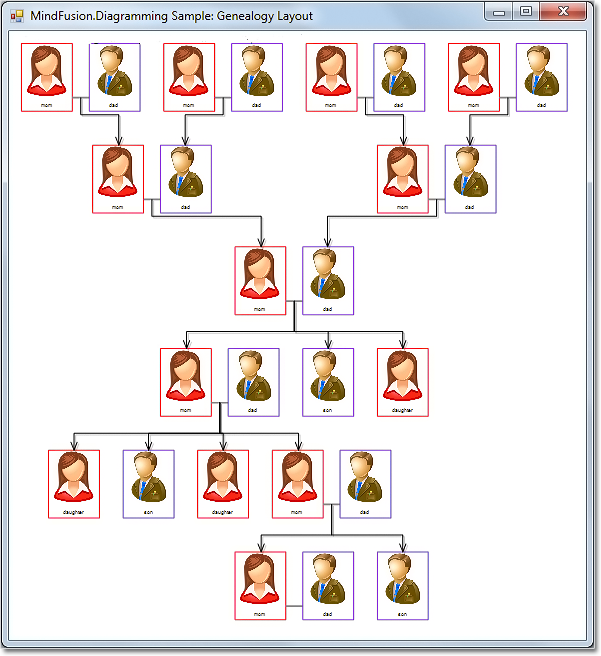
In this example we’ll show how to apply two TreeLayout instances with different settings to arrange a genealogy tree. The genealogy tree is focused on specific person, with several levels of ancestors drawn above and descendants drawn below. A Visual Studio sample project containing the code from this post is available for download here:

GenealogyLayout.zip

As a start, let’s define a new node class that will draw a person’s photo and name inside a frame, along with their partners’. This will simplify our layout code since we won’t have to take care of keeping partner nodes close to each other:

class GenealogyNode : DiagramNode
{
	public List Partners { get; set; }

	public override void DrawLocal(IGraphics graphics, RenderOptions options)
	{
		float relationLinkLen = Bounds.Width / 7;
		int relations = Partners.Count - 1;
		float personViewWidth = Bounds.Width - relations * relationLinkLen;
		personViewWidth /= Partners.Count;

		var rect = GetLocalBounds();
		rect.Width = personViewWidth;
		for (int i = 0; i < Partners.Count; i++)
		{
			DrawPerson(Partners[i], graphics, rect);

			if (i < Partners.Count - 1)
			{
				float rx = rect.Right;
				float ry = rect.Y + 4 * rect.Height / 5;
				rect.X += personViewWidth + relationLinkLen;
				graphics.DrawLine(Pens.Gray, rx, ry, rect.X, ry);
			}
		}
	}

	public override void DrawShadowLocal(IGraphics graphics, RenderOptions options)
	{
	}

	void DrawPerson(Person person, IGraphics graphics, RectangleF rect)
	{
		const float labelHeight = 5;
		const float padding = 3;

		// draw name
		var labelRect = RectangleF.FromLTRB(
			rect.Left,
			rect.Bottom - labelHeight,
			rect.Right,
			rect.Bottom);

		graphics.DrawString(person.Name,
			EffectiveFont, Brushes.Black, labelRect,
			new StringFormat { Alignment = StringAlignment.Center });

		// draw image
		var imageRect = rect;
		imageRect.Height -= labelHeight + padding;

		Utilities.DrawImage(graphics, person.Image, imageRect, ImageAlign.Fit);

		// draw frame
		var frameColor = person.Gender == Gender.Female ?
			Color.Red : Color.BlueViolet;
		var framePen = new System.Drawing.Pen(frameColor, 0);
		graphics.DrawRectangle(framePen, rect);
		framePen.Dispose();
	}
}

Alternatively, we could draw a single person per node instead, placing partners’ nodes close to each other, grouping them using AttachTo method, and later running TreeLayout with its KeepGroupLayout property enabled.

Now to generate a sample tree, we’ll define recursive methods that will create specified number of ancestor pairs (GenerateAncestors) and create random number of descendants (GenerateDescendants):

void GenerateAncestors(GenealogyNode node, int levels)
{
	if (levels == 0)
		return;
	for (int i = 0; i < 2; i++)
	{
		var p = AddPair();
		var link = diagram.Factory.CreateDiagramLink(p, node);
		link.DestinationAnchor = i;
		link.OriginAnchor = 2;
		GenerateAncestors(p, levels - 1);
	}
}

void GenerateDescendants(GenealogyNode node, int levels)
{
	if (levels == 0)
		return;
	int children = random.Next(1, 5);
	for (int i = 0; i < children; i++)
	{
		int r = random.Next(0, 3);
		if (r == 2)
		{
			var p = AddPair();
			var link = diagram.Factory.CreateDiagramLink(node, p);
			link.OriginAnchor = 2;
			link.DestinationAnchor = 0;
			GenerateDescendants(p, levels - 1);
		}
		else if (r == 1)
		{
			var p = new Person { Name = "daughter", Gender = Gender.Female, Image = fImage };
			var childNode = AddNode(p);
			diagram.Factory.CreateDiagramLink(node, childNode);
		}
		else if (r == 0)
		{
			var p = new Person { Name = "son", Gender = Gender.Male, Image = mImage };
			var childNode = AddNode(p);
			diagram.Factory.CreateDiagramLink(node, childNode);
		}
	}
}

GenealogyNode AddPair()
{
	var p1 = new Person { Name = "mom", Gender = Gender.Female, Image = fImage };
	var p2 = new Person { Name = "dad", Gender = Gender.Male, Image = mImage };
	return AddNode(p1, p2);
}

GenealogyNode AddNode(Person p)
{
	var bounds = new RectangleF(0, 0, 30, 40);

	var node = new GenealogyNode();
	node.Bounds = bounds;
	node.Partners = new List { p };
	node.AnchorPattern = AnchorPattern.TopInBottomOut;
	diagram.Nodes.Add(node);
	return node;
}

GenealogyNode AddNode(Person p1, Person p2)
{
	var bounds = new RectangleF(0, 0, 70, 40);

	var node = new GenealogyNode();
	node.Bounds = bounds;
	node.Partners = new List { p1, p2 };
	node.AnchorPattern = PairPattern;
	diagram.Nodes.Add(node);
	return node;
}

Finally we run TreeLayout twice with specified root node, arranging ancestor nodes above the root and descendant nodes below it, creating the genealogy drawing shown below:

private void GenealogyForm_Load(object sender, EventArgs e)
{
	var root = AddPair();
	GenerateAncestors(root, 2);
	GenerateDescendants(root, 3);

	var l1 = new TreeLayout();
	l1.ReversedLinks = true;
	l1.Direction = TreeLayoutDirections.BottomToTop;
	l1.Anchoring = Anchoring.Keep;
	l1.LevelDistance *= 2;
	l1.NodeDistance *= 1.4f;
	l1.LinkStyle = TreeLayoutLinkType.Cascading3;
	l1.Arrange(diagram);

	var l2 = new TreeLayout();
	l2.Root = root;
	l2.KeepRootPosition = true;
	l2.Anchoring = Anchoring.Keep;
	l2.LevelDistance *= 2;
	l2.NodeDistance *= 1.4f;
	l2.LinkStyle = TreeLayoutLinkType.Cascading3;
	l2.Arrange(diagram);

	diagram.ResizeToFitItems(5);
	//diagramView.ZoomToFit();
}

genealogy tree layout

The code above uses MindFusion’s .NET API and can be used with Windows Forms, WPF, Silverlight and ASP.NET diagramming components. The Java API for Android and desktop Swing application will look similar, with setter method calls instead of property assignments.

You can download the trial version of any MindFusion.Diagramming component from this page.

Enjoy!

Diagramming for Windows Forms, V6.3.1

MindFusion has just released a new version of its popular Diagramming for WinForms component. Here are details about the new features:

Improved arrowhead rendering
Arrowhead rendering has been improved as you can see in following new vs. old version image.

  • arrowheads are rendered as a single path when possible and several arrowhead Shape definitions has been changed to implement mitered joints when HeadPen is set to a thick pen.
  • the point where end segments connect to arrowheads can be specified via the Shape.LinkSegmentInset property. Shape definitions from the Arrowheads class set it to suitable default value. This allows using transparent or semi-transparent brushes without seeing the link line drawn behind arrowheads.
  • arrowhead shadows are no longer filled if the link’s EffectiveBrush is null or fully transparent.
New vs. old arrowheads

New vs. old arrowheads

Miscellaneous

  • VisioExporter export speed has been improved greatly for large diagrams.
  • For consistence with MindFusion libraries for other platforms, BackBrush in default diagram style has been changed to white brush.
  • Improved DiagramLink rendering speed.
  • Multiple-resize of rotated nodes fixed to apply same offsets in nodes’ local coordinate system.
  • Fixed KeepInsideParent constraint for rotated parent nodes.

You can download the trial version from the link below:

Diagramming for WinForms, V6.3.1

If you have questions or run into problems using the component you can use the Diagramming for WinForms forum, the help desk or write us at support@mindfusion.dev. Our support team will be pleased to help you.

About MindFusion.Diagramming for WinForms: A programming component that provides any WinForms application with a full set of features for creating and customizing all types of diagrams, flowcharts, schemes, hierarchies, trees, graphs etc. The control provides numerous ways to save and load a diagram, six auxiliary controls and more than 12 automatic graph layout algorithms. Diagram elements include scrollable tables, container nodes, multi-segment arrows, custom diagram item types and many more. Further details here.

Diagramming for WinForms is a royalty-free component, clients get 12 month upgrade subscription when buying a license. The source code is also available for purchase. Visit the buy page for a list with the current license prices.

Combine layout algorithms

Use OrthogonalLayout to generate initial placement for SpringLayout

In a series of posts we’ll explore ways to combine graph layout algorithms for various purposes, such as improving layout speed or achieving specific layout constraints.

In this example we’ll show how to apply OrthogonalLayout as preprocessing step for SpringLayout used to minimize edge crossings. A problem with force-directed layout algorithms such as SpringLayout is that they can reach equilibrium of the simulated forces while there are link crossings present. However if the simulation starts from an initial layout that has minimal number of crossing, it will tend to reach balance without introducing new crossings. So we can use any of the layout algorithms used for arranging planar graphs (OrthogonalLayout, TriangularLayout, CascadingLayout) to create the initial configuration for SpringLayout.

OrthogonalLayout is designed to create planar drawings of graphs (having no crossing links at all if possible) where edge segments are either horizontal or vertical. For some types of diagrams, such as flowcharts, you might use OrthogonalLayout as is. However in many cases you might prefer SpringLayout, e.g. in order to achieve aesthetic criteria like uniform edge lengths, or to conform to accepted drawing conventions such as the one used to present state machines. So when you know your graphs are planar or close to planar, you can run OrthogonalLayout as pre-processing step, and then run the physical-force simulation using SpringLayout to achieve straight-line uniform length drawings:

void ApplySpringLayout(bool preArrange)
{
    if (preArrange)
    {
        var tl = new OrthogonalLayout();
        tl.Arrange(diagram);
    }

    var sl = new SpringLayout();
    sl.Randomize = false;
    sl.MinimizeCrossings = true;
    sl.IterationCount = 50;
    sl.Arrange(diagram);

    diagramView.ZoomToFit();
}

Here are several examples of the method results when called respectively with false (on the left side) and with true (on the right side of image). Note that for such small graphs SpringLayout will probably remove the crossings if left to run for more iterations, but in the general case and with larger graphs that’s not guaranteed.

1

2

3

The code above uses MindFusion’s .NET API and can be used with Windows Forms, WPF, Silverlight and ASP.NET diagramming components. The Java API for Android and desktop Swing application will look similar, with setter method calls instead of property assignments.

Enjoy!