MindFusion.Reporting for WinForms, V2.3 Is Released

MindFusion is happy to announce the new release of its WinForms reporting control. Here is an overview of the new features:

Support for Visual Studio 2015

MindFusion.Reporting now supports Visual Studio 2015 as well. You can tell the installer to create VS2015 toolbox palette for the component.

Licensing

There is no separate trial build of the control assemblies anymore. Instead, you must set the LicenseKey property of the component to disable the evaluation mode and stop displaying trial messages. If your application contains more than one control by MindFusion, you can call MindFusion.Licensing.LicenseManager.AddLicense(key) to specify the key once instead of setting it per each control. License key strings are listed on the Keys & Downloads page at MindFusion’s customer portal.

Barcodes

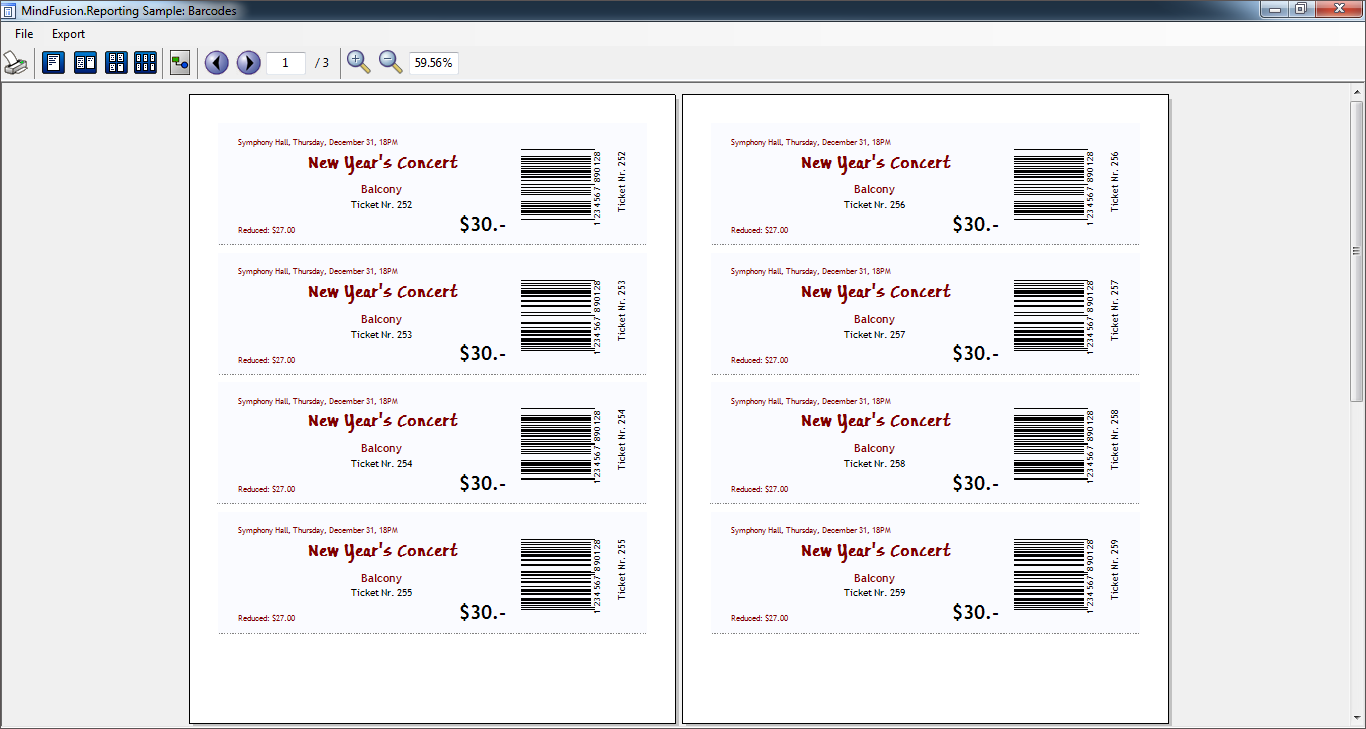
Use the new Barcode report item to display UPC-A, UPC-E, EAN-8, EAN-13, and QR barcodes in your WinForm reports. A new sample demonstrates how to implement the feature.

MindFusion WinForms Reporter: Bar Codes

MindFusion WinForms Reporter: Bar Codes

The component is available for direct download from here:

Download MindFusion Reporter for WinForms, V2.3

Don’t forget that the reporting tool is also available on Nuget. To install the component, run the following command in the Package Manager Console:

PM> Install-Package MindFusion.Reporting

Additional information about the library can be found in the online documentation:
http://www.mindfusion.dev/onlinehelp/mindfusionreporting/index.htm

Technical support is available at the Reporting for WinForms section of MindFusion discussion board, at the Help Desk or per e-mail at support@mindfusion.dev. Either way, MindFusion competent and friendly support team is pleased to assist you with any questions or inquiries you might have about the product.

About Reporting for WinForms: Enhance your business application with the complete set of features to create impressive, user-friendly reports that present important data in an easy-to comprehend look. Enjoy the rich report design capabilities that let you integrate charts, customize fonts and use easy WinForms component as a report item.
Bind our report to any .NET data source or work in an unbound mode. Choose among various output options among which XML, PDF and HTML files. Get inspired, get moving – MindFusion Reporting for WinForms is designed and developed to help you acheive best possible results in little time and with little effort. Read more about the tool here…

Diagramming for ASP.NET, V5.4.2

The new version 5.4.2 of Diagramming for ASP.NET offers web developers a setoff useful new features. Here are the details:

Canvas mode improvements

  • Shape property of TableNode and ContainerNode is now supported in Canvas mode.
  • CellFrameStyle and EnableStyledText properties of TableNode are now supported in Canvas mode.
  • CellTextEditedScript event raised when users edit the text of table cells.
  • CreateEditControlScript event lets you create custom DOM element or fragment to use as in-place text editor.
  • NodeListView raises nodeSelected event when the user selects a node.
  • Load XML files from client side by calling loadFromXml method of Diagram class.
  • Fixed setZoomFactorPivot bug in virtual scroll mode.
MindFusion ASP.NET Diagram Control: Table Nodes

MindFusion ASP.NET Diagram Control: Table Nodes

Miscellaneous

  • NodeTextEdited, LinkTextEdited and CellTextEdited server-side events.
  • createThickness method added to ScriptHelper.
  • Sample projects have been improved and extended.
MindFusion ASP.NET Diagram Control: Container Nodes

MindFusion ASP.NET Diagram Control: Container Nodes

Here is a direct link to download the trial version:

Download MindFusion.Diagramming for ASP.NET, V5.4.2 Trial Version

Technical support
MindFusion support team is happy to assist you with any questions you might have about Diagramming for ASP.NET or any other of our products. You can leave a message at the discussion board, use the help desk or e-mail support@mindfusion.dev.. We strive to provide competent and detailed answers to your questions within hours of receiving them.

About Diagramming for ASP.NET: An advanced WebForms programming component that offers all the functionality that is needed for creating, styling and presenting attractive flowcharts, hierarchies, trees, graphs, schemes, diagrams and many more. The control offers numerous utility methods, path finding and cycle detection, rich event set and many useful user interaction features like tool tips, multiple selection, copy/paste to/from Windows clipboard and many more.

NetDiagram offers more than 100 predefined node shapes, scrollable tables, 13 automatic layouts and many
more. You can check the online demo to see some of the features in action. The control includes many samples, detailed documentation and step-by-step tutorials. Every features is duly documented and there’s plenty of code to copy. The component is not only powerful and scalable, but easy to learn and fun to use.

Diagramming for ActiveX V4.9.1 Released!

MindFusion is proud to announce the new release of its ActiveX Diagramming control. Here is an overview of the new features:

Highlight table rows
You can use the new HighlightedRow property of a Table to the index of a row that should be drawn highlighted. You can set the background of highlighted rows’ with RowHighlightColor. With the new AutoHighlightRows property, a row will be highlighted automatically when clicked.

Tables in the diagramming for ActiveX component.

Tables in the diagramming for ActiveX component.

Miscellaneous

  • VisioImporter, VisioExporter and SvgExporter has been merged into the main flowchartx.dll library file, and can now be used with its 64-bit version.
  • Set the BackColor property of ArrowLabel to fill the background of link labels.
  • Link segments now connect to the base of arrowhead shapes instead of going all the way through them, letting you use transparent and semi-transparent fill color for arrowheads without seeing segment ends inside.
  • Fixed crash in 64-bit SaveToBitmap function.

The trial version of the control is available for download from here:

Download FlowChartX 4.9.1 Trial Version

Technical support
MindFusion puts special effort in providing excellent customer support to all developers who use our components. You can write at the forum, help desk or use e-mail support@mindfusion.dev. All questions are usually answered within hours of being received.

About MindFusion.Diagramming for ActiveX: An ActiveX programming component that lets you create with ease every type of diagram, flowchart, scheme, chart, hierarchy, tree etc. The control supports rich user interaction model with advanced features like tool tips, grid alignment, docking points for nodes, scrolling and zooming and many more. FlowChartX implements 7 automatic layouts as well arrow routing. The appearance if each flowchart is completely customizable. Nodes can hold both images and text, their Z-order can be changed and there are tens of predefined shapes to choose from. Nodes support aero and glass visual effects.

The control also includes detailed documentation and many samples for a variety of languages and
platforms. You can find more about the features of the tool at the features page or check the licensing scheme and the prices here.

Diagramming for ASP.NET MVC, V2.5

MindFusion is pleased to announce the new release of Diagramming for ASP.NET MVC. It includes:

Appearance improvements

  • You can use the new Shape property of tables and containers to RoundedRectangle to render them with rounded corners.
  • Now it is possible to hide the frames of table cells by setting the CellFrameStyle property to None.
  • You can set the EnableStyledText property of TableNode class to render styled text in tables.
ASP.NET MVC Diagram Control:  Container Nodes

ASP.NET MVC Diagram Control: Container Nodes

New events

  • The control raises cellTextEdited event when users edit the text of table cells.
  • The createEditControl event lets you create custom DOM element or fragment to use as in-place text editor.
  • NodeListView raises nodeSelected event when the user selects a node.

Miscellaneous

  • Width and Height properties and the corresponding setter methods for DiagramView, NodeListView, Overview and ZoomControl are now obsolete. You can use new helper methods of the controls to pass an HTML attributes object, containing dimensions and other style data.
  • You can now prevent the control from automatically adding references to script files by disabling the AddScriptReferences property.
  • The loadFromXml(url) method of Diagram class lets you load XML files from client side.
  • We have fixed a setZoomFactorPivot bug in virtual scroll mode.

The trial version is available for direct download from the link below:

Download MindFusion.Diagramming for ASP.NET MVC, V2.5

MindFusion support team is happy to assist you with any questions you might have about Diagramming for ASP.NET MVC or any other of our products. You can leave a message at the discussion board, use the help desk or e-mail support@mindfusion.dev.. We strive to provide competent and detailed answers to your questions within hours of receiving them.

About Diagramming for ASP.NET MVC Control: It is a multi-purpose diagramming tool that consists of two parts: a .NET class library running on the server and a client side control implemented in JavaScript. The server side .NET library implements a flow-diagramming object model that lets you define structures such as trees, flowcharts and graphs. Every element in the diagram is easily accessible and the whole diagram is rendered as part of an HTML page by just calling the DiagramView extension method.

On the client the diagram is rendered by a DiagramView JavaScript control that draws its content on an HTML Canvas. The user is able to add nodes and links simply by drawing them with the mouse. There is also a NodeListView control, which lets users create new nodes via drag and drop.

MvcDiagram also supports various automatic layout algorithms that will make every diagram easy to understand and nice to look at. The diagram can also be easily serialized in binary or XML format. Exporting is done in a variety of formats including Pdf, Svg, Visio and more. You can read details about the components at the MvcDiagram features page.

Create a Dialogue Editor using MindFusion Diagram

In this post we’ll demonstrate how to create a graphical interface for editing dialogues using MindFusion diagramming API. The sample could be used as a module in different kinds of applications, such as software for creating and conducting surveys, editing interactive voice response systems, designing NPC dialogues in game development tools. You can download the complete project here:

DialogueEditor.zip

The sample code will show several features of Diagram control:

  • TableNode API
  • in-place edit
  • work with groups
  • graph traversal

Questions or IVR messages and their possible answers / responses will be displayed respectively in caption area and cells of TableNode objects. Helper nodes at table bottom will let users add or remove rows. DiagramLink objects connecting table rows to other tables will define the dialogue flow, i.e. what next question / message to display after user selects option from current message.

Let’s start by creating a new .NET Windows Forms project. If you have installed MindFusion diagram control and selected toolbox integration from setup wizard screen, you should now see a Diagram component and DiagramView control in the toolbox. If they are not available, right click and select Choose Items, navigate to installation folder and select the mindfusion.diagramming and mindfusion.diagramming.winforms assemblies. Now drag a Diagram component to the form, and set its name to “diagram”. This automatically adds a diagramming.dll reference to the project. Drag a DiagramView (which add diagramming.winforms reference) and name it diagramView. Set its Diagram property to “diagram”, selecting it from the drop-down in property grid.

We will allow creation only of tables and links, so let’s set DiagramView.Behavior property to LinkTables. Now if users draw on the diagram canvas, the component will create TableNode if the mouse pointer is over unoccupied part of the diagram, or a DiagramLink if the mouse points a table. If we wanted to support more type of nodes, we could add their prototypes to a NodeListView instance and let users create new instances via drag-and-drop.

Add the following fields and constructor code to set up appearance and behavior of diagram elements.

public MainForm()
{
	InitializeComponent();

	// set up initial table appearance
	diagram.TableNodeStyle.Brush = new MindFusion.Drawing.SolidBrush(Color.LightGray);
	diagram.TableRowCount = 1;
	diagram.TableColumnCount = 1;
	diagram.TableCaption = "question";
	diagram.NodeEffects.Add(new GlassEffect());

	// highlight a row when clicked
	diagram.AutoHighlightRows = true;

	// find link routes automatically
	diagram.RouteLinks = true;

	// allow edit texts by double click
	diagramView.AllowInplaceEdit = true;

	// row anchor points
	rightOutput = new AnchorPattern("Right");
	rightOutput.Points.Add(new AnchorPoint(100, 50, false, true));

	// table anchor points
	input = new AnchorPattern("Input");
	input.Points.Add(new AnchorPoint(50, 0, true, false));
	input.Points.Add(new AnchorPoint(50, 100, true, true));
}

AnchorPattern rightOutput;
AnchorPattern input;

Select the diagram component in form editor and double click its NodeCreated event to add event handler. NodeCreated is raised when the user draws a new node. Add following code to associate a question / IVR message with the table, and initialize some default texts. The BeginEdit method automatically opens in-place editor to let user edit caption text immediately after drawing. We also create + and – ShapeNodes that will act as button widgets attached to the table’s bottom-right corner.

private void OnNodeCreated(object sender, MindFusion.Diagramming.NodeEventArgs e)
{
	var table = e.Node as TableNode;
	if (table != null)
	{
		int tableId = (1 + diagram.Nodes.Count / 3);
		table.Id = tableId;
		table.RowAnchorPattern = rightOutput;
		table.AnchorPattern = input;
		table.ConnectionStyle = TableConnectionStyle.Both;
		table[0, 0].Text = "option 1";
		table.Caption = "question " + tableId;
		diagramView.BeginEdit(table);

		// create + button for adding new rows
		var r = table.Bounds;
		var p = new PointF(r.Right - 14, r.Bottom - 8);
		var s = new SizeF(6, 6);
		var plus = diagram.Factory.CreateShapeNode(p, s, Shapes.Cross);
		plus.Brush = new MindFusion.Drawing.SolidBrush(Color.Green);
		plus.AttachTo(table, AttachToNode.BottomRight);
		plus.Tag = "+";

		// create - button for deleting selected row
		p.X += 7;
		p.Y += 2;
		s.Height -= 4;
		var minus = diagram.Factory.CreateShapeNode(p, s, Shapes.Rectangle);
		minus.Brush = new MindFusion.Drawing.SolidBrush(Color.Red);
		minus.AttachTo(table, AttachToNode.BottomRight);
		minus.Tag = "-";

		plus.Locked = minus.Locked = true;
		table.SubordinateGroup.AutoDeleteItems = true;
	}
}

Now add a NodeClicked handler that adds or deletes rows. If the + button is clicked, the code inserts a new row before current highlighted row. If the – button is clicked, the handler deletes current highlighted row.

private void OnNodeClicked(object sender, NodeEventArgs e)
{
	if ("+".Equals(e.Node.Tag))
	{
		var table = (TableNode)e.Node.MasterGroup.MainItem;
		if (table.HighlightedRow == -1)
			table.RowCount++;
		else
			table.InsertRow(table.HighlightedRow);
	}

	if ("-".Equals(e.Node.Tag))
	{
		var table = (TableNode)e.Node.MasterGroup.MainItem;
		if (table.HighlightedRow != -1)
			table.DeleteRow(table.HighlightedRow);
	}
}

Finally, lets create export function that will traverse the dialogue graph and export it to a custom-format XML file, which could then be passed on to a system processing the dialogues, such as IVR service.

private void btnExport_Click(object sender, EventArgs e)
{
	var fileDlg = new SaveFileDialog();
	if (fileDlg.ShowDialog() == DialogResult.OK)
	{
		var doc = new XmlDocument();
		var root = doc.CreateElement("Dialogue");
		doc.AppendChild(root);

		foreach (var node in diagram.Nodes)
		{
			var table = node as TableNode;
			if (table != null)
			{
				var questionElement = doc.CreateElement("Question");
				root.AppendChild(questionElement);

				int id = (int)table.Id;
				questionElement.SetAttribute("Id", table.Id.ToString());
				questionElement.SetAttribute("Text", table.Caption);

				for (int r = 0; r < table.Rows.Count; r++)
				{
					string answer = table[0, r].Text;
					var answerElement = doc.CreateElement("Answer");
					questionElement.AppendChild(answerElement);
					answerElement.SetAttribute("Text", answer);
					if (table.Rows[r].OutgoingLinks.Count > 0)
					{
						var link = table.Rows[r].OutgoingLinks[0];
						var nextQuestion = (TableNode)link.Destination;
						answerElement.SetAttribute("Text", answer);
						answerElement.SetAttribute("NextId", nextQuestion.Id.ToString());
					}
				}
			}
		}

		doc.Save(fileDlg.FileName);
	}
}

If you run the application now and draw several tables and links, you should see a similar screen:

dialogue editor created with mindfusion diagram control for .NET

The code above uses MindFusion’s .NET API and can be used with Windows Forms, WPF, Silverlight and ASP.NET diagramming components. The Java API for Android and desktop Swing application will look similar, with setter method calls instead of property assignments.

You can download the trial version of any MindFusion.Diagramming component from this page.

Enjoy!