Diagramming for ASP.NET MVC, V1.6

MindFusion is pleased to announce a new release of its Diagramming component for ASP.NET MVC. Here is an overview of the new features:

Import of OpenOffice Draw files

You can now import .odg files, created by the OpenOffice Draw vector graphics editor. Various overloads of the Import method can be used to import the OpenOffice drawing into a DiagramDocument, whose pages correspond to the Draw pages or into a single Diagram, whose content is merged from all important pages. The new DrawImporter class supports shapes from the General and Flowchart shape palettes in Draw. For each node and connector shape, the importer creates a matching ShapeNode or DiagramLink object and sets their properties in such manner that the source shape or link is matched as precisely as possible.

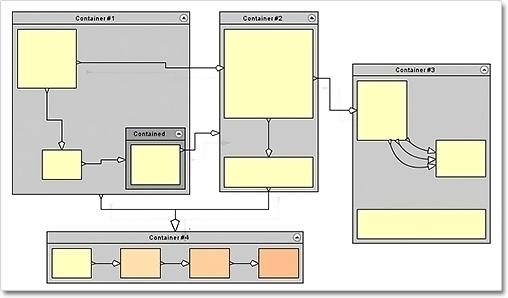
ContainerNode Improvements

  • child nodes are now drawn by their containers; when the containers overlap, the children of the lower container do not appear in front of the children of the upper container anymore;
  • you can use the ClipChildren property to specify whether child items are clipped to the container’s boundaries;
  • the ZIndex property does not get automatically updated when new nodes are dropped into a container.
Container Nodes

Container Nodes

PdfExporter Improvements

  • Improved handling of clip regions in custom drawing code
  • PDF shadings now include all colors from a ColorBlend
  • PdfExporter is now thread-safe
The PdfExporter

The PdfExporter

Miscellaneous

More information about the new release is posted at the forum. You can download the trial version of the component from the link below:

Download MindFusion.Diagramming for ASP.NET MVC 1.6

Technical support

Technical support is available at the Diagramming for ASP.NET MVC forum, the help desk, or per e-mail at support@mindfusion.dev. Excellent customer support is one of our top priorities and we try to provide competent and detailed answers to all your questions within hours of receiving them.

About Diagramming for ASP.NET MVC Control: It is a multi-purpose diagramming tool that consists of two parts: a .NET class library running on the server and a client side control implemented in JavaScript. The server side .NET library implements a flow-diagramming object model that lets you define structures such as trees, flowcharts and graphs. Every element in the diagram is easily accessible and the whole diagram is rendered as part of an HTML page by just calling the DiagramView extension method.

On the client the diagram is rendered by a DiagramView JavaScript control that draws its content on an HTML Canvas. The user is able to add nodes and links simply by drawing them with the mouse. There is also a NodeListView control, which lets users create new nodes via drag and drop.

MvcDiagram also supports various automatic layout algorithms that will make every diagram easy to understand and nice to look at. The diagram can also be easily serialized in binary or XML format. Exporting is done in a variety of formats including Pdf, Svg, Visio and more. You can read details about the components at the MvcDiagram features page.

Formula shapes with adjustable parameters in Flowchart.NET

In this post we’ll show how to create custom formula shapes with adjustable control points. Shape control points are a new feature in version 6.1 of the Flowchart.NET control, which is currently in beta tests. You can download a copy of the beta version from the following link.

https://mindfusion.dev/_beta/DiagWinForms61.zip

A shape formula is defined using a script, which calls one of the following functions to draw the node shape.

MoveTo (x,y) Moves the current position to the specified point without drawing.
LineTo (x,y) Draws a line from the current position to the specified point.
BezierTo (x1,y1,x2,y2,x3,y3) Draws a Bezier curve from the current position to (x3,y3) using (x1,y1) and (x2,y2) as control points.
ArcTo (x,y,largeArc,clockwiseArc,rx,ry) Draws an arc from the specified point to (x,y) where rx and ry are the ellipse radiuses and the arc flags are boolean values specifying which of the four possible arcs to draw.

For example, the following formula defines a rounded rectangle shape using lines and arcs, and expects to receive a “radius” control point parameter that will control the corner radii:

// a rounded rectangle shape, with an arc at each corner
string roundRect = @"
	r = Min(Width / 2, radius.X);
	MoveTo(r, 0);
	LineTo(Width - r, 0);
	ArcTo(Width, r, false, false, r, r);
	LineTo(Width, Height - r);
	ArcTo(Width - r, Height, false, false, r, r);
	LineTo(r, Height);
	ArcTo(0, Height - r, false, false, r, r);
	LineTo(0, r);
	ArcTo(r, 0, false, false, r, r);
 ";

When creating a Shape instance, we must add a ShapeControlPoint object to it that defines the radius parameter and its constraints. The following code specifies that the default radius is 5, the minimum and maximum values allowed are 1 and 15 respectively, and prevents the control point from moving vertically by setting minY and maxY to 0.

var myRect = new Shape(roundRect, "MyRect");

// add a control point for the 'radius' parameter
myRect.ControlPoints.Add(new ShapeControlPoint(
	"radius", 5, 1, 15, UnitType.Fixed, 0, 0, 0, UnitType.Fixed));

Here is another example that defines an anchor-like shape with two parameters controlling the tips of the anchor arms.

// an anchor shape, with two arcs outlining each anchor arm
string anchor = @"
	r = Width / 3;
	y1 = p1.Y * Height / 100;
	y2 = p2.Y * Height / 100;
	MoveTo(Width / 2, Height);
	MoveTo(Width / 2 + 3, Height - 5);
	ArcTo(Width, y2, false, true, r, r);
	ArcTo(Width / 2 + 3, Height - 10, false, false, r, r);
	LineTo(Width / 2 + 3, 0);
	LineTo(Width / 2 - 3, 0);
	LineTo(Width / 2 - 3, Height - 10);
	ArcTo(0, y1, false, false, r, r);
	ArcTo(Width / 2 - 3, Height - 5, false, true, r, r);
	LineTo(Width / 2, Height);
 ";

var myAnchor = new Shape(anchor, "MyAnchor");

// add control points at the tips of anchor arms
myAnchor.ControlPoints.Add(new ShapeControlPoint(
	"p1", 0, 0, 0, UnitType.Percentage, 55, 50, 80, UnitType.Percentage));
myAnchor.ControlPoints.Add(new ShapeControlPoint(
	"p2", 100, 100, 100, UnitType.Percentage, 55, 50, 80, UnitType.Percentage));

The following diagram contains several nodes displaying the shapes above, with some of the control points moved to different positions.

Some additional functions that you can call from shape scripts are listed below.

PI() Returns the value of PI.
Abs(x) Returns the absolute value of x.
Atn(x) Returns the angle, measured in radians, whose tangent is the specified number.
Cos(x) Returns the cosine of the specified angle.
Acos(x) Returns the angle whose cosine is the specified number.
Exp(x) Returns e raised to the specified power.
Log(x) Returns the natural (base e) logarithm of the specified value.
Pow(x,power) Returns a specified number raised to the specified power.
Sin(x) Returns the sine of the specified angle.
Asin(x) Returns the angle whose sine is the specified number.
Sqrt(x) Returns the square root of a number.
Tan(x) Returns the tangent of the specified angle.
Min(x,y) Returns the smaller of two numbers.
Max(x,y) Returns the larger of two numbers.

The complete sample project is available for download here:
https://mindfusion.dev/_samples/ParamShapes.zip

Enjoy!

Diagramming for WinForms 6.0.4

MindFusion has released a new version of its popular diagramming component for WinForms. Most of the new features are requested by the users – here is a list:

Import of OpenOffice Draw Files

The new DrawImporter class can import *.odg files, created by the OpenOffice Draw vector graphics editor. The importer requires a reference to the MindFusion.Diagramming.Import.Draw.dll assembly. The DrawImporter supports shapes from the General and Flowchart shape palettes in Draw. At your disposal are a variety of Import method overloads that can be used to import the OpenOffice drawing into a DiagramDocument whose pages correspond to the Draw pages, or into a single Diagram whose content is merged from all imported pages.

Import from OpenOffice Draw files is now supported.

Import from OpenOffice Draw files is now supported.

Miscellaneous

Rotation of a node.

Rotation of a node.

A trial version of the component is available from this link:

Diagramming for WinForms 6.0.4

If you have questions or run into problems using the component you can use the Diagramming for WinForms forum, the help desk or write us at support@mindfusion.dev. Our support team will be pleased to help you.

About MindFusion.Diagramming for WinForms: A programming component that provides any WinForms application with a full set of features for creating and customizing all types of diagrams, flowcharts, schemes, hierarchies, trees, graphs etc. The control provides numerous ways to save and load a diagram, six auxiliary controls and more than 10 automatic graph layout algorithms. Diagram elements include scrollable tables, container nodes, multi-segment arrows, custom diagram item types and many more. Further details here.

Diagramming for WinForms is a royalty-free component, clients get 12 month upgrade subscription when buying a license. The source code is also available for purchase. Visit the buy page for a list with the current license prices.

Diagramming for Java Swing, V4.0.2

MindFusion.Diagramming for Java Swing, V4.0.2 has just been released. The new features are mostly requested by the users, we have also fixed several bugs. Here are the details:

ContainerNode improvements

  • JDiagram now draws child nodes by their container. When containers overlap, the children of the lower container can no longer appear above the children of the upper container;
  • You can use the new ClipChildren property to specify whether child items are clipped to the boundaries of the container;
  • When you drop nodes into a container, the ZIndex property is not changed automatically;
  • and more.
Container nodes

Container nodes

Miscellaneous

  • The placement of link labels at shorter link segments is improved.
  • The new DiagramLink.intersects method checks whether two links intersect.
  • You can use the hitTest method to determine whether a diagram item or any of its child items contain the specified point.
  • The getFlatItemList method returns a list of all TreeViewNode items.
  • as well other new properties and methods – check the complete list here.
Labels at diagram links

Labels at diagram links

You can download the control and test yourself its performance and functionality. Here is a direct link to the trial version:

Download MindFusion.Diagramming for Java Swing, V4.0.2

Technical support

Your questions about the library or any other of our components are welcomed by our support team. You can write at the forum, help desk or at support@mindfusion.dev.

About Diagramming for Java Swing: MindFusion.Diagramming for Java Swing provides your Java application with all necessary functionality to create and customize a diagram. The library is very easy to integrate and program. There are numerous utility methods, rich event set, more than 80 predefined shapes. The tool supports a variety of ways to render or export the diagram, advanced node types like TreeView nodes, hierarchical nodes, tables, container nodes and many more. There are 15 automatic layouts, various input / output options and fully customizable appearance. A detailed list with JDiagram’s features is uploaded here. You can check the online demo to see some of the functionality implemented.

Diagramming for Java Swing is royalty free, there are no distribution fees. Licenses depend on the count of developers using the tool – check here the prices.

Diagramming for WPF 3.0.2

MindFusion has just released Diagramming for Wpf programming component v. 3.0.2. Most of the newly added features are requested by our customers. Here are details:

Visio 2003 Import

The new VisioImporter lets you import Visio 2003 XML Drawing files (*.vdx) into WpfDiagram. You can import all standard Visio flowchart shapes as well most of the UML and Database entity shapes. The shapes are imported to their closest representations in the MindFusion.Diagramming for Wpf object model. The relationships between the objects are preserved and the Visio links are imported as DiagramLink objects. Additionally, most of the attributes of the Visio objects such as text, text format, fill and line colour and style are preserved. WpfDiagram raises an event for each imported node and you can set the shape node if it is not recognized by the control or you want to change the shape.

The Import method imports all Visio pages into a DiagramDocument. A DiagramPage is created for each page from the VDX file. The new GetPageCount and ImportPage methods let you determine how many pages are in the Visio document and import only a single one. You can import all Visio pages into a single diagram.

It is easy to import a  diagram from Visio.

It is easy to import a diagram from Visio.

Miscellaneous

  • The overload methods of AttachTo that attach node to link segments or control points, now let you specify negative index values. Negative values are interpreted as relative to the last point or segment, regardless of the current number of link segments.
  • The handling of Clip paths in PdfExporter is improved.
  • You can export the swimplane grid to Visio by setting the ExportLanes property of the VisioExporter.
  • The Copy method lets you copy text attributes between objects that implement the ITextAttribute interface, such as diagram items table cells, tree items.
  • as well other new features – check the full list here.
An arrow is shaped by its control points.

An arrow is shaped by its control points.

You can download the trial version of the software from this link:

Download MindFusion.Diagramming for WPF 3.0.2

The download contains all runtime libraries of the control, various samples for different .NET versions, extensive desktop documentation and step-by-step tutorials.

If you face difficulties installing or using Diagramming for Wpf, please contact MindFusion support team per e-mail or phone. You can also use the forum or help desk. All support inquiries are answered within hours of receiving them.

About MindFusion.Diagramming for Wpf: Designed and developed to be easy to integrate, use, and customize, this native WPF component places at your disposal every single feature you would ever need to create flowcharts, diagrams, graphs, schemes, DB relationships, trees and many more. Its long list of style options gives you complete control over the appearance of the diagram. With a set of eight automatic layouts you are sure to choose the best arrangement for your items and make the diagram easy to comprehend.

The control boasts a long list of events, properties and methods for user interaction, item creation, data input and output. You can read the full features list here. The online demo shows samples that demonstrate various capabilities of the control. The licensing scheme and prices are uploaded at the buy page. Source code is also available.