Combine layout algorithms

Use OrthogonalLayout to generate initial placement for SpringLayout

In a series of posts we’ll explore ways to combine graph layout algorithms for various purposes, such as improving layout speed or achieving specific layout constraints.

In this example we’ll show how to apply OrthogonalLayout as preprocessing step for SpringLayout used to minimize edge crossings. A problem with force-directed layout algorithms such as SpringLayout is that they can reach equilibrium of the simulated forces while there are link crossings present. However if the simulation starts from an initial layout that has minimal number of crossing, it will tend to reach balance without introducing new crossings. So we can use any of the layout algorithms used for arranging planar graphs (OrthogonalLayout, TriangularLayout, CascadingLayout) to create the initial configuration for SpringLayout.

OrthogonalLayout is designed to create planar drawings of graphs (having no crossing links at all if possible) where edge segments are either horizontal or vertical. For some types of diagrams, such as flowcharts, you might use OrthogonalLayout as is. However in many cases you might prefer SpringLayout, e.g. in order to achieve aesthetic criteria like uniform edge lengths, or to conform to accepted drawing conventions such as the one used to present state machines. So when you know your graphs are planar or close to planar, you can run OrthogonalLayout as pre-processing step, and then run the physical-force simulation using SpringLayout to achieve straight-line uniform length drawings:

void ApplySpringLayout(bool preArrange)
{
    if (preArrange)
    {
        var tl = new OrthogonalLayout();
        tl.Arrange(diagram);
    }

    var sl = new SpringLayout();
    sl.Randomize = false;
    sl.MinimizeCrossings = true;
    sl.IterationCount = 50;
    sl.Arrange(diagram);

    diagramView.ZoomToFit();
}

Here are several examples of the method results when called respectively with false (on the left side) and with true (on the right side of image). Note that for such small graphs SpringLayout will probably remove the crossings if left to run for more iterations, but in the general case and with larger graphs that’s not guaranteed.

1

2

3

The code above uses MindFusion’s .NET API and can be used with Windows Forms, WPF, Silverlight and ASP.NET diagramming components. The Java API for Android and desktop Swing application will look similar, with setter method calls instead of property assignments.

Enjoy!

Spreadsheet for WinForms, V1.2

MindFusion has released a new version of Spreadsheet for WinForms with the following new features:

Formatted text support
You can import, display and export texts with mixed formatting. You can create formatted texts programmatically by assigning a FormattedText instance to the Data property of cells. Currently the control supports: font name and size, bold, italic, underlined, strikeout, and text color.

New Functions
At your disposal are 22 new functions, which have been added to the core calculation engine, including a full set of database functions, such as DGET, DSUM, and so on. Check Function Reference for additional information.

Improved in-place editing
Now when you type a new formula, pressing the arrow keys will result in navigation within the worksheet (instead of adjusting the caret position) and the selected cell or cell ranges will be inserted as a reference in the currently edited formula.

Sport events schedule

Sport events schedule

You can download the trial version from the link below:

Download MindFusion.Spreadsheet for WinForms 1.2, Trial Version

If you require technical support, you can post a message at the forum, send us an e-mail at support@mindfusion.dev. or use the help desk. MindFusion takes special effort in providing fast and detailed answers to all inquiries that we receive.

About MindFusion.Spreadsheet for WinForms: An easy-to-use programming component suitable for building all types of spreadsheets fast and easy. The tool supports formulas, tool-tips, cell annotations, cell spanning, scrolling and many more. You can add charts and images as well use the flexible style system to design the perfect spreadsheet. The component supports full undo and redo as well copy and paste from Windows clipboard.
You can import spreadsheet data from CSV, XLSX or ODS files and export the final spreadsheet in a number of formats – as images, PDF or CSV, XLSX or ODS files. Various auxiliary forms help you quickly adjust the data and appearance of your spreadsheet. Read more about the features of the component here or check the license prices at the buy page.

Spreadsheet for WinForms is part of MindFusion Pack for WinForms, which offers other useful components that are of great use when you build any type of WinForms application – from a diagramming library to map control to gauges: check them here.

Diagramming for Silverlight, V3.0.1

We have released a new version of the Diagramming component for Silverlight. Here is an overview of the new features:

Zoom control

The new ZoomControl class lets users interactively change the zoom level and position of a diagram. In order to use the ZoomControl, place it anywhere over the target diagram and set the target property of the control to that diagram. Use the ZoomStep and ScrollStep properties to customize the control. The control’s appearance is customized with the Fill, Stroke, CornerRadius and TickPosition properties.

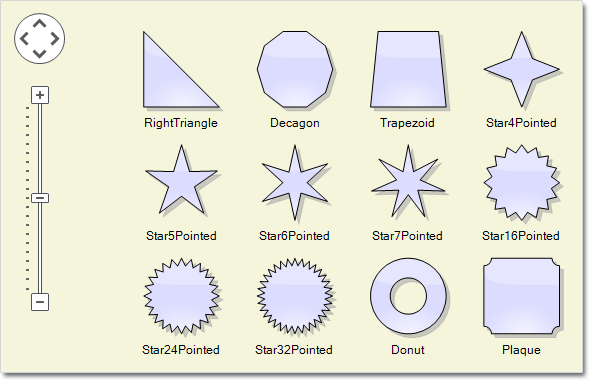
The zoom control and the new predefined node shapes.

The zoom control and the new predefined node shapes.

Miscellaneous

  • Use the new AllowRenamePages property of TabbedDiagramView to let users rename a DiagramPage interactively by clicking on its tab.
  • Several new stock shapes have been added: RightTriangle, Decagon, Trapezoid, Star4Pointed, Star5Pointed, Star6Pointed, Star7Pointed, Star16Pointed, Star24Pointed, Star32Pointed, Donut, Plaque.
  • The HandlesStyle property of nodes supports two new handle styles – RoundAndSquare and RoundAndSquare2.
  • The SetSelfLoopShape event is raised when a link becomes a self-loop. You can set a custom shape for that link.
  • and much more – find the full list here.
Tabbed view.

Tabbed view.

Direct download of the trial version is available from the link below:

Download DiagramLite 3.0.1 Trial Version

Feel free to contact us with any questions about Diagramming for Silverlight or any other of our products – please use the forum, email support@mindfusion.dev or the help desk. We strive to provide competent and detailed answers to all support inquiries within hours of receiving them.

About MindFusion.Diagramming for Silverlight: A programming component specially designed and developed to provide web developers with a fast and easy way to create diagrams, graphs, schemes, hierarchies, charts and many more. The impressive feature set of the control ranges from predefined node shapes to custom nodes and thirteen automatic layouts. The style and appearance of all diagram elements are completely customizable, the numerous samples provide programmers with plenty of example code to look from.

The control boasts intuitive API that is documented in details in the help file provided with the installation. There are also step-by-step tutorials and various guides. You can check the features list here to find out more about the capabilities of the tool. An online demo is also available. The prices are per developer, source code is also available. Learn more about the licensing scheme here.

MindFusion Pack for WPF 2014.R1

MindFusion has released its Pack for WPF 2014.R1. Here is an overview of the new features:

Support for Visual Studio 2013
The installer can create a toolbox palette in VS2013 for the components and optionally installs VS2013 sample projects.

diagram16x16MindFusion.Diagramming

Import of Visio 2013 files
The new Visio2013Importer class can import *.vsdx files, which were created with Microsoft Visio 2013. The importer requires a reference to the MindFusion.Diagramming.Wpf.VisioImport.dll assembly. You can use the various overloads of the Import method to import the Visio drawing into a DiagramDocument, whose pages correspond to the Visio pages or into a single Diagram, whose content
is merged from all important pages.

Zoom control
The ZoomControl class lets the users change interactively the current zoom level and scroll position of a Diagram or DiagramView. In order to use it, you should add a Zoom control to the window, place it anywhere over the target diagram and set the control’s Target property to that diagram or view. The Zoom control offers numerous customization properties.

Miscellaneous

  • Enable the AllowRenamePages property of TabbedDiagramView to let users rename a DiagramPage interactively by clicking on its tab.
  • Several new shapes added for better compatibility with Visio 2013 basic stencil: RightTriangle, Decagon, Trapezoid, Star4Pointed, Star5Pointed, Star6Pointed, Star7Pointed, Star16Pointed, Star24Pointed, Star32Pointed, Donut, Plaque.
  • DefaultEncoding and AutoDetectEncoding properties added to PdfExporter.
  • and much more.
The Zoom control and the new predefined shape nodes

The Zoom control and the new predefined shape nodes

You can read details about the new features of the pack at the news page on the forum. The trial version is available for direct download from this link:

Download MindFusion.Pack for WPF 2014.R1

About MindFusion.Wpf Pack: A set of advanced WPF components that help you build your business application easy and on time. The tools provide you with a complete set of features to create, edit and render complex flowcharts, charts, diagrams, calendars, schedules, maps and reports. A set of gauges and UI elements is also included. Each component offers various samples, tutorials and detailed documentation. The controls offer simple and intuitive API, completely customizable appearance, numerous input/output options and a rich event set. Each tool has been thoroughly tested to guarantee that you and your application get the high quality and performance you deserve.

You can read more about the capabilities of each component at its features page:

Prices and licenses are explained in details at the buy page. We offer permanent discounts to certain types of commercial as well non commercial organizations – check here if you qualify.

Formula shapes with adjustable parameters in Flowchart.NET

In this post we’ll show how to create custom formula shapes with adjustable control points. Shape control points are a new feature in version 6.1 of the Flowchart.NET control, which is currently in beta tests. You can download a copy of the beta version from the following link.

https://mindfusion.dev/_beta/DiagWinForms61.zip

A shape formula is defined using a script, which calls one of the following functions to draw the node shape.

MoveTo (x,y) Moves the current position to the specified point without drawing.
LineTo (x,y) Draws a line from the current position to the specified point.
BezierTo (x1,y1,x2,y2,x3,y3) Draws a Bezier curve from the current position to (x3,y3) using (x1,y1) and (x2,y2) as control points.
ArcTo (x,y,largeArc,clockwiseArc,rx,ry) Draws an arc from the specified point to (x,y) where rx and ry are the ellipse radiuses and the arc flags are boolean values specifying which of the four possible arcs to draw.

For example, the following formula defines a rounded rectangle shape using lines and arcs, and expects to receive a “radius” control point parameter that will control the corner radii:

// a rounded rectangle shape, with an arc at each corner
string roundRect = @"
	r = Min(Width / 2, radius.X);
	MoveTo(r, 0);
	LineTo(Width - r, 0);
	ArcTo(Width, r, false, false, r, r);
	LineTo(Width, Height - r);
	ArcTo(Width - r, Height, false, false, r, r);
	LineTo(r, Height);
	ArcTo(0, Height - r, false, false, r, r);
	LineTo(0, r);
	ArcTo(r, 0, false, false, r, r);
 ";

When creating a Shape instance, we must add a ShapeControlPoint object to it that defines the radius parameter and its constraints. The following code specifies that the default radius is 5, the minimum and maximum values allowed are 1 and 15 respectively, and prevents the control point from moving vertically by setting minY and maxY to 0.

var myRect = new Shape(roundRect, "MyRect");

// add a control point for the 'radius' parameter
myRect.ControlPoints.Add(new ShapeControlPoint(
	"radius", 5, 1, 15, UnitType.Fixed, 0, 0, 0, UnitType.Fixed));

Here is another example that defines an anchor-like shape with two parameters controlling the tips of the anchor arms.

// an anchor shape, with two arcs outlining each anchor arm
string anchor = @"
	r = Width / 3;
	y1 = p1.Y * Height / 100;
	y2 = p2.Y * Height / 100;
	MoveTo(Width / 2, Height);
	MoveTo(Width / 2 + 3, Height - 5);
	ArcTo(Width, y2, false, true, r, r);
	ArcTo(Width / 2 + 3, Height - 10, false, false, r, r);
	LineTo(Width / 2 + 3, 0);
	LineTo(Width / 2 - 3, 0);
	LineTo(Width / 2 - 3, Height - 10);
	ArcTo(0, y1, false, false, r, r);
	ArcTo(Width / 2 - 3, Height - 5, false, true, r, r);
	LineTo(Width / 2, Height);
 ";

var myAnchor = new Shape(anchor, "MyAnchor");

// add control points at the tips of anchor arms
myAnchor.ControlPoints.Add(new ShapeControlPoint(
	"p1", 0, 0, 0, UnitType.Percentage, 55, 50, 80, UnitType.Percentage));
myAnchor.ControlPoints.Add(new ShapeControlPoint(
	"p2", 100, 100, 100, UnitType.Percentage, 55, 50, 80, UnitType.Percentage));

The following diagram contains several nodes displaying the shapes above, with some of the control points moved to different positions.

Some additional functions that you can call from shape scripts are listed below.

PI() Returns the value of PI.
Abs(x) Returns the absolute value of x.
Atn(x) Returns the angle, measured in radians, whose tangent is the specified number.
Cos(x) Returns the cosine of the specified angle.
Acos(x) Returns the angle whose cosine is the specified number.
Exp(x) Returns e raised to the specified power.
Log(x) Returns the natural (base e) logarithm of the specified value.
Pow(x,power) Returns a specified number raised to the specified power.
Sin(x) Returns the sine of the specified angle.
Asin(x) Returns the angle whose sine is the specified number.
Sqrt(x) Returns the square root of a number.
Tan(x) Returns the tangent of the specified angle.
Min(x,y) Returns the smaller of two numbers.
Max(x,y) Returns the larger of two numbers.

The complete sample project is available for download here:
https://mindfusion.dev/_samples/ParamShapes.zip

Enjoy!