Diagramming for ASP.NET 5.0.2

MindFusion has released a new version of its diagramming component for ASP.NET. Here is a list of the most important new features:

Canvas Mode Improvements

  • Glass and Aero effects
  • radial gradients
  • multiple labels per link
  • NodeSelectedScript and LinkSelectedScript client-side events
  • more new methods and events
Node visual effects.

Node visual effects.

ContainerNode Improvements

  • Child nodes are now drawn by their containers; when containers overlap, the children of a lower container cannot appear in front of the upper container anymore
  • the ClipChildren property specifies whether to clip child items to container’s boundaries
  • the ZIndex property no longer changes automatically when dropping nodes into a container
  • and more
Container nodes.

Container nodes.

Improvements in the PdfExporter

  • improved handling of clip regions in custom drawing code
  • PdfExporter now honors the target Rectangle property of linear gradients
  • PDF shadings now include all colors from a ColorBlend
  • more precise character widths set when text includes both eastern glyphs and Latin characters
  • as well other improvements

Detailed information about the release is posted at the forum. If you are interested in the component, use the following link to get the trial version:

Download MindFusion.Diagramming for ASP.NET 5.0.2 Trial Version

Technical support

MindFusion support team is happy to assist you with any questions you might have about Diagramming for ASP.NET or any other of our products. You can leave a message at the discussion board, use the help desk or e-mail support@mindfusion.dev.. We strive to provide competent and detailed answers to your questions within hours of receiving them.

About Diagramming for ASP.NET: An advanced WebForms programming component that offers all the functionality that is needed for creating, styling and presenting attractive flowcharts, hierarchies, trees, graphs, schemes, diagrams and many more. The control offers numerous utility methods, path finding and cycle detection, rich event set and many useful user interaction features like tool tips, multiple selection, copy/paste to/from Windows clipboard and many more.

NetDiagram offers 87 predefined node shapes, scrollable tables, 13 automatic layouts and many more. You can check the online demo to see some of the features in action. The control includes many samples, detailed documentation and step-by-step tutorials. Every features is duly documented and there’s plenty of code to copy. We have done our best to make the component not only powerful and scalable, but easy to learn and fun to use.

Line Chart with a Separator in WinForms

In today’s post we’ll show how to build a line chart with several line series and a separator line. The separator line is drawn at a given height and divides the chart into two halves.

The Line Series

The line series are three, so we must add three lists with data to the XData and YData properties. We can do this in three ways: type the values in design time, write them in code or use data binding. In design time we use the built-in collection editors of the control:

The Series collection editor

The Series collection editor

In code we make lists with the data and add them to XData or YData:

lineChart1.YData.Clear();
lineChart1.YData.Add(new List { 45, 64, 38.2, 33.03, 56, 68, 39, 42 });
lineChart1.YData.Add(new List { 34, 42, 28, 42, 35, 31, 62, 55 });
lineChart1.YData.Add(new List { 22, 19, 32, 28, 17, 25, 31, 36 });

If you want to use data binding then set DataSource to the name of the data source, DataMember to specify the name of the table which will supply the data and XDataFields/YDataFields to provide the name(s) of the fields. In this case we will require three data base columns for each of the three series – separate the names with a comma e.g.

lineChart1.YDataFields = "Sales1,Sales2,Sales3";

For XData we use the same list because we want the series to appear exactly under each other:

lineChart1.XData.Clear();
lineChart1.XData.Add(new List { 10, 20, 30, 40, 50, 60, 70, 80 });

The Series

We set LineType to Line and Scatter because we want to show scatters at data points:

lineChart1.LineType = MindFusion.Charting.LineTypes.Line |  
MindFusion.Charting.LineTypes.Scatter;

The LineTypes enumeration allows bit wise combining of its members. We use ChartPens to set the pens for the line series. ShapesPens and ShapeBrushes set the pens for the outline and the brushes for filling the scatters:

lineChart1.ChartPens.Add(new MindFusion.Drawing.Pen(Color.FromArgb(102, 205, 170), 6));
lineChart1.ShapePens.Add(new MindFusion.Drawing.Pen(Color.FromArgb(102, 205, 170), 2));   

The pens for the series are thicker than the pens for the scatters. The fill brush is slightly lighter:

lineChart1.ShapeBrushes.Add(new MindFusion.Drawing.SolidBrush(Color.FromArgb(175, 251, 175)));

Finally – we set the size of the shapes and their type:

lineChart1.Shapes.Add(MindFusion.Charting.Shape.Circle);
lineChart1.ShapeSizes.Add(10);

The Separator

There are two ways to draw the separator line.

The first is to add a custom summary value. In this case the separator line will be drawn from the
smallest X-data value to the biggest one, parallel to the axes.

lineChart1.AddCustomSummary(40.0, "");

The summary line is drawn with shapes at both ends, but we can hide them by setting their size to 0:

lineChart1.SummaryBrushes.Add(new MindFusion.Drawing.SolidBrush(Color.Gray));
lineChart1.SummaryShapeSizes.Add(0);

The second way to draw the separator line is to add it as a 4th series in the XData and YData lists and add a pen for it in the ChartPens list. The advantage is that we can make the line as long as we want, in our case – as long as the length of the X-axis:

lineChart1.XData.Add(new List { 0, 90 });

The Legend

We use LegendLabels to add the labels for the line series:

lineChart1.LegendLabels = new List() { "2010", "2011", "2012" };

We set the background of the legend, but we don’t have to add any brushes or shapes for the legend items – they are taken automatically from the line series settings:

lineChart1.LegendBackgroundBrush = new MindFusion.Drawing.SolidBrush(Color.FromArgb(253, 253,  
253));


The Grid

The GridType is GridType.HorScale. We use GridBrush, AltGridBrush and GridPen to set the colors for the grid.

lineChart1.GridPen = new MindFusion.Drawing.Pen(Color.FromArgb(200, 200, 200));
lineChart1.GridPen.DashStyle = System.Drawing.Drawing2D.DashStyle.Dash;
lineChart1.GridType = MindFusion.Charting.GridType.HorScale;

If you make the changes to the chart in code, don’t forget to call UpdateChart() to make sure the
control knows changes have happened and the chart must be updated.

Here is the final chart:

A line chart with a separator line.

A line chart with a separator line.

The sample is available for download from here:

Download Line Chart with Separator Line Sample

You can download the trial version of the component with extensive documentation and many other samples from here:

Download MindFusion.Charting for WinForms Trial Version

Diagramming for ActiveX 4.7

MindFusion has released a beta version of its Diagramming for ActiveX component. Here is an overview of the new features:

Glass and Aero Effects

You can now apply Glass and Aero visual effects to nodes with the AddGlassEffect and AddAeroEffect methods, which are added to the Box, Table and Flowchart classes. You must be in the GDI+ mode to use effects.

Here is an overview of the four glass-reflection effects, which you can apply with AddGlassEffect:

The various types of glass effects.

The various types of glass effects.

The AddAeroEffect method aplies semi-transparency to nodes and emphasizes their outline by adding a shade and an inner stroke.

The aero effect.

The aero effect.

Miscellaneous

  • The new SelectionOptions.FramePadding property specifies the distance between the selected items and the selection frame.
  • SelectionOptions.ShowItemHandles property specifies whether handles for individual items are drawn in a multiple selection.
  • Arrow.Segments can be set even on self-loop arrows or when auto routing is enabled.
  • You can set custom shapes for self-loop arrows.
  • and more.

You can read further details about the new features and this release of FlowChartX at the news section of the forum. The trial version of the control is available for download from here:

Download FlowChartX 4.7 Trial Version

Technical support

MindFusion puts special effort in providing excellent customer support to all developers who use our components. You can write at the forum, help desk or use e-mail support@mindfusion.dev. All questions are usually answered within hours of being received.

About MindFusion.Diagramming for ActiveX: An ActiveX programming component that lets you create with ease every type of diagram, flowchart, scheme, chart, hierarchy, tree etc. The control supports rich user interaction model with advanced features like tool tips, grid alignment, docking points for nodes, scrolling and zooming and many more. FlowChartX implements 7 automatic layouts as well arrow routing. The appearance if each flowchart is completely customizable. Nodes can hold both images and text, their Z-order can be changed and there are tens of predefined shapes to choose from. Nodes support aero and glass visual effects.

The control also includes detailed documentation and many samples for a variety of languages and
platforms. You can find more about the features of the tool at the features page or check the licensing scheme and the prices here.

Line Chart with DateTime Data in ASP.NET

In this post we demonstrate how to use MindFusion.Charting for ASP.NET component to create a line chart that shows the number of unique visitors to a store/website in a period of 6 weeks.

Data

The data for the X-axis are DateTime values. We create an array with the DateTime values that we’ll use and add it to the XData property of our chart. Before that we have to delete the predefined array that is added when the control is dropped at the form:

DateTime dt1 = new DateTime(2013, 6, 14);
DateTime dt2 = new DateTime(2013, 6, 7);
DateTime dt3 = new DateTime(2013, 5, 31);
DateTime dt4 = new DateTime(2013, 5, 24);
DateTime dt5 = new DateTime(2013, 5, 17);
DateTime dt6 = new DateTime(2013, 5, 10);

ArrayList data = new ArrayList() { dt1, dt2, dt3, dt4, dt5, dt6 };
LineChart1.XData.Clear();
LineChart1.XData.Add(data);

Next, we must make some adjustments in the settings for the X-axis to tell the control that DateTime data is used. We set the DataFormat property to DateTime and we specify the time range for the axis. This is how we do this:

LineChart1.XAxisSettings.DataFormat = MindFusion.Charting.DataFormat.DateTime;

LineChart1.XAxisSettings.StartDateTime = new DateTime(2013, 5, 3);
LineChart1.XAxisSettings.EndDateTime = new DateTime(2013, 6, 20);
//set the interval to one week - 7 days
LineChart1.XAxisSettings.TimeSpan = new TimeSpan(7, 0, 0, 0);

The data for the Y-axis are numbers. We can set them through the property grid or set them in code.

LineChart1.YData.Clear();
ArrayList data1 = new ArrayList() { 56, 13, 45, 17, 82, 22 };
LineChart1.YData.Add(data1);

The X-axis

First, we must change the LabelType property of XAxisSettings from “ChartData”, which is the default to “AutoScale”. This will make the axis show the time range we’ve set in code above. Then, we change how the DateTime values will be formatted. The Default DateTimeFormat shows the full time and date and is not suitable. We change it to “LongDate”, which does not draw any time.

XAxisSettings-DateTimeFormat="LongDate" 
XAxisSettings-DrawTicksUniformly="False" XAxisSettings-DrawZero="True" 
XAxisSettings-LabelBrush="s:#FF696969" XAxisSettings-LabelOffset="10" 
XAxisSettings-LabelType="AutoScale" XAxisSettings-TitleLabel="Week" 
XAxisSettings-TitleLabelBrush="s:#FF696969" XAxisSettings-TitleLabelOffset="10"

We type “Week” as TitleLabel for the axis and set the DrawZero property to true to show the first label, which is otherwise omitted.

Upon preview we notice that the labels are too close to the axis, that’s why we use LabelOffset and TitleLabelOffset to add some space before them. Finally, we change the color of the labels, to make them dark gray rather than black.

The Y-axis

Customizing the Y-axis is rather simple. We change the interval with AxisDelta to 5 and increase the MaxValue to 100. We don’t need decimal fractions for the labels, that’s why we change the NumberFormat. We add a TitleLabel and change its orientation with TitleLabelOrientation. Finally we use LabelBrush and TitleLabelBrush to change the colors of the labels – we use the same brushes as for the X-axis.

YAxisSettings-AxisDelta="5" 
YAxisSettings-LabelBrush="s:#FF696969" 
YAxisSettings-MaxValue="100" YAxisSettings-NumberFormat="Fixed_point_0Digits" 
YAxisSettings-TitleLabel="Unique Visitors" 
YAxisSettings-TitleLabelBrush="s:#FF696969" 
YAxisSettings-TitleLabelOrientation="BottomToTop"

The Grid

Initially the chart shows no grid – but we want to show a grid. That’s why we change GridType to “Crossed” and set a GridPen. The dark gray background of the plot area together with its outlining are set with PlotAreaOutlinePen and PlotAreaBrush.

GridPen="n:0/#FFE1E1E1/0/0/0//0/0/10/" GridType="Crossed" PlotAreaBrush="s:#FFC0C0C0" 
PlotAreaOutlinePen="n:0/#FF787878/0/0/0//0/0/10/"

This is the code that was generated by the designer because we set the properties through the property grid. If we set them with code, it will be:

LineChart1.GridPen = new MindFusion.Drawing.Pen(Color.FromArgb(225,225,225));
LineChart1.GridType = MindFusion.Charting.GridType.Crossed;
LineChart1.PlotAreaBrush = new MindFusion.Drawing.SolidBrush(Color.FromArgb(192, 192, 192));
LineChart1.PlotAreaOutlinePen = new MindFusion.Drawing.Pen(Color.FromArgb(120, 120, 120));


The Line Series

We want scatters at data points and we want to show labels above those scatters. The LabelType property lets us set the type to be both line and scatters:

LineChart1.LineType = MindFusion.Charting.LineTypes.Line | MindFusion.Charting.LineTypes.Scatter;

This is the default type, so you don’t need to set it if you have not changed it before. We use ShapeBrushes, ShapePens and ShapeSizes to set the brushes and size of the scatters. We can do this in the property grid or in code. Finally, we want to show labels above scatters. We use LabelType and LabelFormat to set what kind of labels are drawn and since our labels are numbers – how they are formatted.

LabelBorder="RoundedRect" LabelBorderBackground="s:#FFFFFFE0" LabelBorderOutline="n:0/#FF787878/0/0/0//0/0/10/" LabelFormat="Fixed_point_0Digits" LabelType="Data"

In code you write:

LineChart1.LabelBorder = MindFusion.Charting.Border.RoundedRect;
LineChart1.LabelBorderBackground = new MindFusion.Drawing.SolidBrush(Color.FromArgb(255, 255, 224));
LineChart1.LabelBorderOutline = new MindFusion.Drawing.Pen(Color.FromArgb(120, 120,120));
LineChart1.LabelFormat = MindFusion.Charting.NumberFormat.Fixed_point_0Digits;
LineChart1.LabelType = MindFusion.Charting.LabelType.Data;

Here is the final chart:

Line chart with DateTime values in ASP.NET

Line chart with DateTime values in ASP.NET

You can download the sample from this link:

Download Line Chart for ASP.NET Sample

The trial version of the component is available from here:

MindFusion.Charting for ASP.NET Trial Version Download

Charting for Silverlight 1.2

We have released Charting for Silverlight 1.2 with the following new features:

Styles and Themes

The appearance of each chart element – axis, legend, series – is defined by a style. Each ChartTheme is a collection of styles. Charting for Silverlight 1.2 lets you:

  • create themes based on the appearance of an existing chart
  • create themes with the ThemeEditor tool
  • save themes to XML files
  • load themes from XML files
  • use a number of predefined themes.

You can read detailed instructions on how to save, load and edit themes in the “Working with Themes” tutorial.

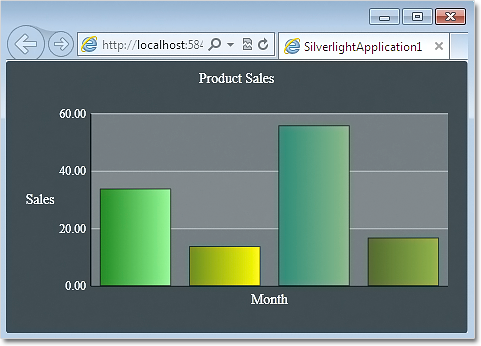
The green theme applied at a bar chart in Silverlight.

The green theme applied at a bar chart in Silverlight.

Better Design Time Support

Charting for Silverlight lets you now edit all collection properties – like series, legends and brushes – in the property grid. In addition we have added converters that let you edit label and data collection in XAML.

Axis Intervals

The new AxisSettings.IntervalCount property lets you specify the count of intervals at the numeric axis. When IntervalCount is set, the Interval property is not considered and the axis is calculated based on AxisSettings.Min, AxisSettings.Max and AxisSettings.IntervalCount.

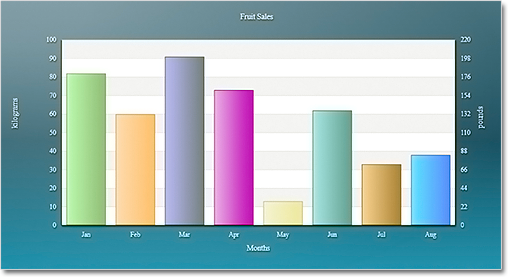
A bar chart with two Y-axes.

A bar chart with two Y-axes.

API Changes

There are a number of changes in the control’s API mainly the type of some properties that were collections is changed to accommodate the new design-time features. Check the “What’s New in This Release” section in the control’s documentation for further details.

You can find out more about the new release at the news page in the Charting for Silverlight section on our forum. The trial version is available for download from here:

Charting for Silverlight 1.2 Trial Version Download

You are welcome to contact us with any questions, problems or inquiries about the control or any other of our products. You can use the discussion board, the help desk or the contact form. MindFusion has always put special emphasis on providing excellent customer support and we usually answer your questions within hours of receiving them.

About MindFusion.Charting for Silverlight: A programming component that combines powerful charting capabilities with a simple API and easy use. Among the features of the control are fully customizable grid, multiple legends, positive and negative values on all chart axes, second X and second Y axis, gauges and many more – read them here.

The control provides detailed documentation and many different samples that show how to customize it. It supports all major chart types – bar, line, radar and pie, as well different modifications of them – column, doughnut, polar, area charts etc. Licenses are counted per user, distribution is royalty free. Each license guarantees full technical support. The source code is also available.