Diagramming for JavaScript, V2.4

The new version of Diagramming for JavaScript library is out! Here is an overview of the new features:

Appearance improvements

  • You can now set the Shape property of tables and containers to RoundedRectangle and render them with rounded corners.
  • It is possible to hide the frames of table cells by setting the CellFrameStyle property to None.
  • You can now set the EnableStyledText property of TableNode class to render styled text in tables.
JavaScript Diagram Library: Table Nodes

JavaScript Diagram Library: Table Nodes

New events

  • The control raises cellTextEdited event when users edit the text of table cells.
  • The createEditControl event lets you create custom DOM element or fragment to use as in-place text editor.
  • NodeListView raises nodeSelected event when the user selects a node.

Miscellaneous

  • jQuery mode is now the default and all sample projects have been updated to use jQuery. To continue using the Microsoft Ajax library, set MindFusionImpl = “MsAjax” before loading Diagramming.js
  • the loadFromXml method of Diagram class lets you load XML files created by MindFusion diagram controls for other platforms.
  • fixed setZoomFactorPivot bug in virtual scroll mode.

Registered customers with an active upgrade subscription can download the licensed version from the clients area on our site.

A trial version is available for direct download from the following link:

Download MindFusion Diagramming Library for JavaScript, V2.4

We are glad to receive any comments, suggestions and feedback. You can write us at e-mail support@mindfusion.dev or use the help desk. You can use the JsDiagram section on MindFusion forum to post questions about the tool.

About Diagramming for JavaScript Library: Written 100% in JavaScript, this tool uses HTML5 Canvas to draw impressive diagrams, schemes, flowcharts, trees and many more. It is browser independent, easy to use and integrate into any web application. JsDiagram supports a variety of predefined node shapes, customizable links, rich event set and many appearance options.

The user interaction model includes resizing / moving / selecting and modifying any diagram element. The tool boasts an elegant API, which is documented in details as well numerous step-by-step guides and tutorials. Various samples are provided to let you learn quickly how to use the most important features of the library – check them here. JsDiagram is not only the perfect choice for creating any type of diagram in the browser – it can also arrange it the way you wish with a mouse click using one of its automatic graph layout algorithms. For more details about the features of the component, please visit the Diagram for JavaScript page.

Combination Chart in Android

This post is a step-by-step tutorial in how to create a combination chart in android with the Charting for Android library.

I. Project configuration

Let’s create a new project. In Eclipse, we choose File -> New -> Android Application Project. We write “CombinationChart” as an application name. The package is called com.mindfusion.combinationchart. The other settings remain unchanged.

II. Adding the jar file.

With project created, it’s time to add the libraries. Copy the droidchart.jar from the libs directory of the sample project (download file here) to the libs directory of your project. Then right-click on your project and choose Properties -> Java Build Path -> Libraries -> Add JARs. Navigate to the libs folder and add the droidchart.jar.

Adding a JAR library to an Android application project

Adding a JAR library to an Android application project

III. Declaring the chart

Time to declare the chart in the layout of the application. We build a simple application, where the chart will be the only thing that shows. So, we edit the activity_main.xml file, which is found in res -> layout folder in the project tree for the CombinationChart application.

We change the layout to Linear and we introduce a new xml node – chart. The chart node refers to a class found in the com.mindfusion.charting namespace.

<LinearLayout xmlns:android="http://schemas.android.com/apk/res/android"
xmlns:tools="http://schemas.android.com/tools"
xmlns:chart="http://schemas.android.com/apk/lib/com.mindfusion.charting"
...

Then we declare the chart:

<com.mindfusion.charting.AxesChart
android:id=”@+id/combi_chart”
android:layout_width=”fill_parent”
android:layout_height=”wrap_content”
chart:gridType=”horizontal”
chart:titleOffset=”40dp”
chart:titleHeight=”40dp”
chart:labelHeight=”12dp”
tools:context=”.MainActivity” />

We name it combi_chart. This is important because we’ll use the name to retrieve the chart object in the next step.

IV. General chart settings.

In this step we’ll set the general chart settings. First, we get the chart object, which is declared in the layour (see previous step).


private AxesChart chart;
....
chart = (AxesChart)findViewById(R.id.combi_chart);

Then we set the title and the offset of the title e.g. the space between the title and the plot are for the chart. We also set the height of the font for the title labels and the other labels at the chart.


chart.setTitle("Visitors in Paradise Hotels");
chart.setTitleOffset(50f);
chart.setTitleHeight(30f);
chart.setLabelHeight(20f);

V. The grid.

Our chart has a crossed grid with light gray grid stripes. This is set with the following code:


ArrayList gridStrokes = new ArrayList();
gridStrokes.add(Color.rgb(207, 207, 207));
chart.setGridStrokeColors(gridStrokes);


chart.setGridType(GridType.Crossed);

VI. The axes.

The X-axis has 10 intervals. Each division has its own label. We set the label type to custom text, specify the labels and customize the min and max numbers to be shown:


chart.xAxisSettings.setMin(0f);
chart.xAxisSettings.setMax(10f);
chart.xAxisSettings.setInterval(1f);
chart.xAxisSettings.setLabelType(AxisLabelType.Custom);


ArrayList xLabels = new ArrayList();
Collections.addAll(xLabels, "2005", "2006", "2007", "2008", "2009", "2010", "2011", "2012", "2013", "2014");
chart.xAxisSettings.setLabels(xLabels);

The Y-axis has no custom labels, it just shows the value intervals. But it has a title. Here is how we set it:


chart.yAxisSettings.setMin(0f);
chart.yAxisSettings.setMax(30f);
chart.yAxisSettings.setInterval(10f);
chart.yAxisSettings.setLabelType(AxisLabelType.Scale);
chart.yAxisSettings.setTitle("in thousands");

VII. The bar series.

The first series is a bar series. We create a new instance of the BarSeries class and add 10 x and y float numbers, which will be used to calculate the size and location of the bars:


BarSeries series1 = new BarSeries();

ArrayList xData = new ArrayList();
for(int i = 0; i < 10; i++)
xData.add((float)i);
series1.setXData(xData);


ArrayList yData1 = new ArrayList();
Collections.addAll(yData1, 15f, 17f, 18f, 19f, 18.4f, 16.4f, 12f, 17f, 18.7f, 19.1f );
series1.setYData(yData1);

The next thing to do is to specify the colors for the bars and their outlining. The library has the FillColors and StrokeColors property, which we use:


ArrayList fillColors1 = new ArrayList();
fillColors1.add(Color.rgb(174, 200, 68));
series1.setFillColors(fillColors1);


ArrayList strokeColors1 = new ArrayList();
strokeColors1.add(Color.rgb(115, 133, 45));
series1.setStrokeColors(strokeColors1);

Let’s not forget to add the ready series to the collection of series.


chart.addSeries(series1);

VIII. The line series with scatters.

The line series is an instance of the LineSeries class, where we set the ScatterType and LineType properties:


LineSeries series2 = new LineSeries();
series2.setScatterType(ScatterType.Circle);
series2.setLineType(LineType.Line);
series2.setScatterSize(20f);
...
chart.addSeries(series2);

The ScatterFillColors and ScatterStrokeColors are used for setting the colors of the scatters. The properties for the line are the same as with the bar series: StrokeColors.

IX The area series.

The area series has a different line type than the scatter series. We don’t set the scatter type here since its set to “None” by default.

The data in both line series is set in the same way as in the bar series and we don’t cite it again.


LineSeries series3 = new LineSeries();
series3.setLineType(LineType.Area);
...
chart.addSeries(series3);

Here is the final chart:

An elegant combination chart for Android mobile devices.

An elegant combination chart for Android mobile devices.

The sample is available for download from here:

Download Android Combination Chart Sample

Read more about MindFusion Charting for Android library here.

Scheduling for WinForms, V5.6

We are excited to announce the new release of MindFusion.Scheduling for WinForms. The new version includes:

Visual Studio 2015 Support

The installer of the Scheduling control can create VS2015 toolbox palette for its components.

Interactive Recurrence Rescheduling

You can now reschedule recurrences interactively by holding down the RescheduleRecurrenceKey while dragging a recurrent item. As a truly smart control, MindFusion.Scheduling tries to preserve the current pattern of the recurrence when possible. Otherwise, the recurrence may be modified to accommodate to the new start and end times of the modified item. Note that interactive rescheduling is not registered in the undo history.

New Theme

Bring a touch of fresh spring air to your calendars with the new built-in Light theme. It is available through the ThemeType enumeration.

The new 'Light' theme

The new ‘Light’ theme

New Properties

Scheduling for WinForms offers a few new properties:

  • The new HScrollBarHeight and VScrollBarWidth properties in the ControlStyle class allow you to modify the size of the scrollbars.
  • The RescheduleRecurrenceKey property in the Calendar class can be used to modify recurrences interactively.
  • The RotateGroupHeaderTexts property in the ListViewSettings class can be used to rotate the resource names in the group headers.
  • GroupHourCount, HourFormat and TimelinePadding added to the TimetableSettings class.

MindFusion.Scheduling as a NuGet Package

The component is also available on Nuget. To install the component, run the following command in the Package Manager Console:

PM> Install-Package MindFusion.Scheduling

The trial version of the control is available from the link below:

Download MindFusion.Scheduling for WinForms 5.6

If you have questions about the component, please use the support e-mail or the help desk. MindFusion takes special efforts in providing fast and competent answers to all support inquiries we receive.

About MindFusion.Scheduling for WinForms: MindFusion.Scheduling for WinForms is a programming component that adds to your .NET application powerful features for creating and customizing any type of schedule, calendar, time table, resource table and many more. The tool supports six data views, input/output from/to a variety of data sources and rich user interaction model. Scheduling for WinForms offers various auxiliary forms for creating and editing appointments, tasks and events. A theme editor for creating custom themes is also available. The control features a rich variety of predefined themes and various item effects.

You can read more about Scheduling for WinForms at its features page. Visit the gallery page to see screenshots of various calendars and schedules created with the tool. For more information about licenses and prices go to the buy page.

Spreadsheet for WinForms, V1.4

MindFusion is happy to announce the Scheduling for WinForms, V1.4 is out. Here is a list of the new features:

Licensing

Spreadsheet for WinForms is the next MindFusion component that no longer has separate trial build of the control assemblies. Instead, set its LicenseKey property to disable the evaluation mode and stop displaying trial messages. If your application contains more than one control by MindFusion, you could call MindFusion.Licensing.LicenseManager.AddLicense(key) to specify the key once instead of setting it per each control. License key strings are listed on the Keys & Downloads page at MindFusion’s customer portal. Don’t forget to add a reference to the MindFusion.Licensing dll if it’s not already present in your project.

Visual Studio 2015 support

MindFusion.Spreadsheet for WinForms now includes support for Visual Studio 2015. The installer can create VS2015 toolbox palette for the component.

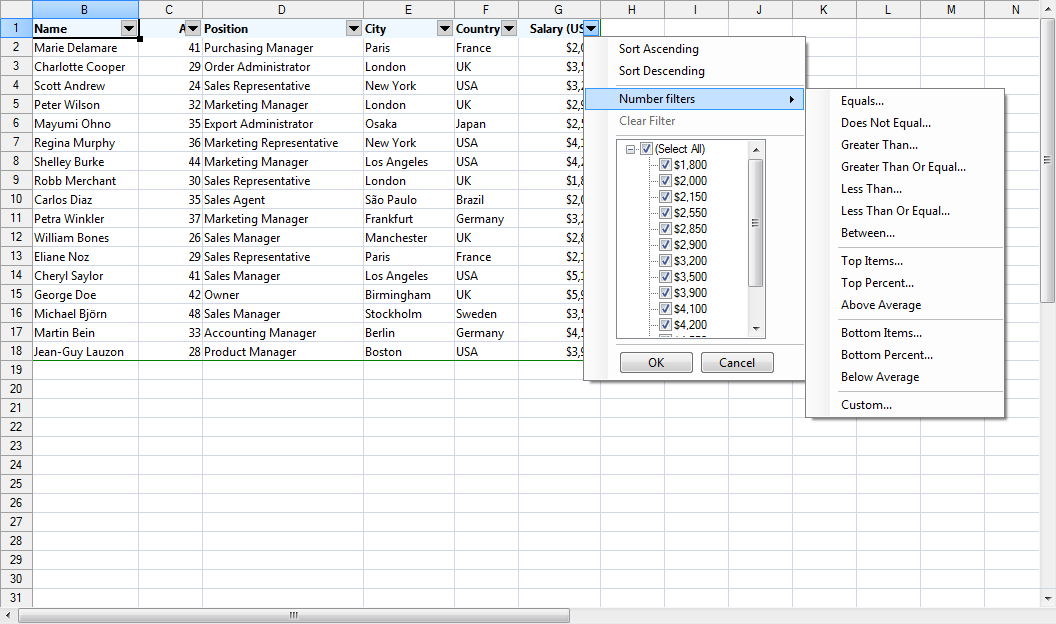
Autofiltering

Worksheets now support autofiltering. To enable it, just call the AutoFilter method of the CellRange class. You can specify autofiltering criteria for individual columns with the the AutoFilter overload. You also have the convenience to specify these criteria interactively, through the drop-down buttons inside the headers of each column in the target range.

Spreadsheet for WinForms: Auto Filtering

Spreadsheet for WinForms: Auto Filtering

Multiple Selection

Extend the functionality of your WinForms spreadsheet application by allowing users to select multiple cell ranges. You can

    • even add cell ranges interactively, by holding down the CTRL key while dragging with the mouse. You can also do it programmatically, by using one of the new methods of the Selection class: Add, AddRow, and AddColumn.
Spreadsheet for WinForms: Multiple Selection

Spreadsheet for WinForms: Multiple Selection

Miscellaneous

      • The new EnableTypeInference property can be used to suppress automatic type inference in the workbook.
      • The tooltips displayed when the user resizes rows and columns can now be turned off through the ShowResizeHeaderToolTips property. The format of these tooltips can be specified through the ResizeColumnToolTipFormat and ResizeRowToolTipFormat properties.

You can download the trial version from the link below:

Download MindFusion.Spreadsheet for WinForms V1.4 Trial Version

If you require technical support, you can post a message at the forum, send us an e-mail at support@mindfusion.dev. or use the help desk. MindFusion takes special effort in providing fast and detailed answers to all inquiries that we receive.

About MindFusion.Spreadsheet for WinForms: An easy-to-use programming component suitable for building all types of spreadsheets fast and easy. The tool supports formulas, tool-tips, cell annotations, cell spanning, scrolling and many more. You can add charts and images as well use the flexible style system to design the perfect spreadsheet. The component supports full undo and redo as well copy and paste from Windows clipboard.
You can import spreadsheet data from CSV, XLSX or ODS files and export the final spreadsheet in a number of formats – as images, PDF or CSV, XLSX or ODS files. Various auxiliary forms help you quickly adjust the data and appearance of your spreadsheet. Read more about the features of the component here or check the license prices at the buy page.

Spreadsheet for WinForms is part of MindFusion Pack for WinForms, which offers other useful components that are of great use when you build any type of WinForms application – from a diagramming library to map control to gauges: check them here.

Scheduling for Silverlight, V3.3.2

We are happy to announce the new version of the Scheduling for Silverlight library. Here is an overview of the new features:

Licensing

MindFusion no longer maintains separate trial build of the control assemblies. Instead, set the LicenseKey property of the individual components to disable the component’s evaluation mode and stop displaying trial messages. If your application contains more than one control by MindFusion, you could call MindFusion.Licensing.LicenseManager.AddLicense(key) to specify the key once instead of setting it per each control. License key strings are listed on the Keys & Downloads page at MindFusion’s customer portal. Make sure your project has a reference to the MindFusion.Licensing assembly.

Visual Studio 2013/2015 support

The Schedule control now includes support for Visual Studio 2013 and 2015. The installer can create VS2013 and VS2015 toolbox palette for the component.

Improved data grid

You can now customize the cells and headers in the data grid through a set of new properties: CellBorderBrush, CellBorderThickness, HeaderBackground, HeaderBorderBrush, HeaderBorderThickness, HeaderFontSize, HeaderForeground, and HeaderMargin. Use the new ColumnCreating event to replace a grid column with a custom one.

MindFusion Scheduler for Silverlight: The Gantt Chart

MindFusion Scheduler for Silverlight: The Gantt Chart

New Holiday Providers

Enrich your Silverlight application with the new set of five holiday providers, which are now part of the MindFusion.HolidayProviders.dll assembly – AustraliaHolidayProvider, FranceHolidayProvider, GermanyHolidayProvider, RussiaHolidayProvider, and UKHolidayProvider.

MindFusion Scheduler for Silverlight: Holiday Providers

MindFusion Scheduler for Silverlight: Holiday Providers

Improved Timetable view

We have made some API changes to make using the component even easier. The WorkTimeStartHour and WorkTimeEndHour properties have been renamed to WorkTimeStart and WorkTimeEnd respectively and are now of type TimeSpan to allow more flexible work time intervals. In addition, you can now use the new WorkTimeStarts and WorkTimeEnds properties to specify different work time intervals for the different days in the view. The new ColumnHeaderTemplate property lets you customize the column headers by using a DataTemplate object.

Improved WeekRange view

The Week Range view can now display week numbers, similarly to the Single Month view. Use the WeekHeaderPosition property to enable week numbers and customize them with the RotateWeekHeaderTexts, WeekHeaderFormat, WeekHeaderStyle, and WeekNumbersHeaderWidth properties.

Improved Resource view

We have added a new RowHeaderTemplate property for customization of the row headers.

MindFusion Scheduler for Silverlight: The Resource View

MindFusion Scheduler for Silverlight: The Resource View

Miscellaneous

  • New resource and item hit-testing methods: GetItemAt and GetResourceAt.
  • The modifier key to clone items interactively can now be specified through the ItemCloneKey property.
  • New ItemStartModifying event.
  • Various bug fixes.
  • Two new samples – CustomMonthCalendar and CustomTimetableGrid.

See those numerous new features and tons of existing ones in action – download the component’s libraries with samples and documentation from this link:

MindFusion Scheduler for Silvelight, V3.3.2 Trial Version

Your questions, comments and inquiries are welcomed by MindFusion competent and friendly support team. Write us at the forum, Help desk or use e-mail support@mindfusion.dev

About MindFusion Scheduler for Silverlight: MindFusion.Scheduling for Silverlight provides your web application with a host of useful features for creating, customizing, importing and exporting calendars, time tables, appointment schedules. What’s more, the component includes a full-features Gantt chart with an activity chart and a resource chart. Unleash your creativity with the vast set of appearance options and enjoy the freedom to create calendars where every single detail is customizable and can be controlled by you. Implement professional Gantt diagrams and bring project planning features to your web software with a few mouse clicks. The library is packed with many samples, tutorials and extensive documentation to help you started. The licensing scheme is very attractive with various discount options and great savings for multiple licenses as well for small companies – check it here.