Create diagram connectors using drag and drop

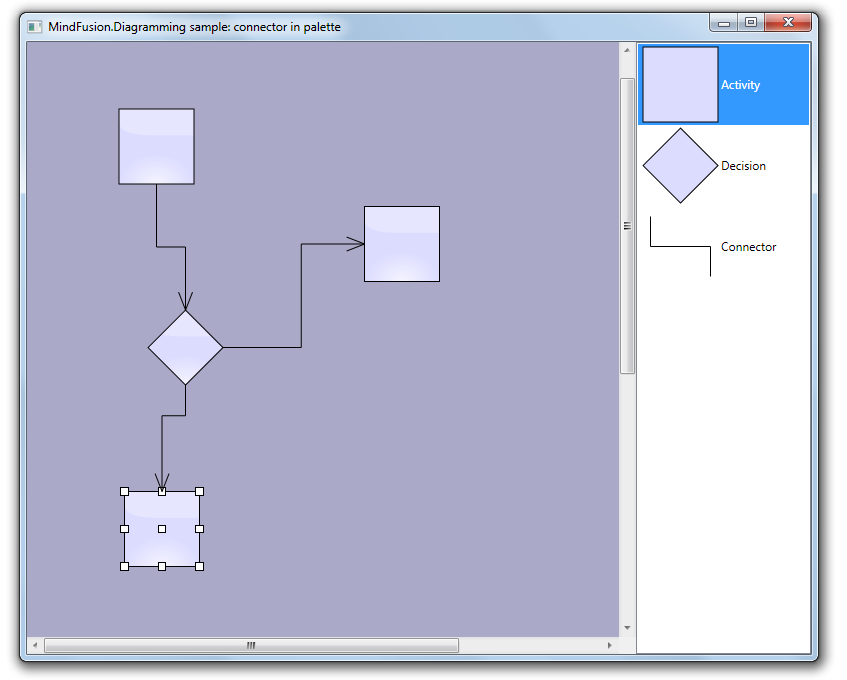
In this post we show how to create diagram links via drag-and-drop operation from a NodeListView used as a palette. Since the NodeListView control can contain only DiagramNode objects, we will create a custom node shape representing a connector. Once the dummy connector node is created, the NodeCreated event handler will replace it with a DiagramLink. In addition, the handler will find nearby nodes and automatically connect the link to them.

Let’s start with a new WPF project. Add a reference to mindfusion.diagramming.dll, and add Diagram and NodeListView controls to the window:

<ScrollViewer
	Grid.Column="0"
	Focusable="False"
	HorizontalScrollBarVisibility="Visible">
	
	<diag:Diagram
		x:Name="diagram"
		AllowDrop="True"
		NodeCreated="OnNodeCreated"
		NodeModified="OnNodeModified">
	</diag:Diagram>
	
</ScrollViewer>

<diag:NodeListView
	x:Name="nodeList"
	Grid.Column="1">
</diag:NodeListView>

In the Window constructor, create a custom node shape that will represent connectors:

var connectorShape = new Shape(
	null, // no borders
	new[] // decorations
	{
		new LineTemplate(10, 10, 10, 50),
		new LineTemplate(10, 50, 90, 50),
		new LineTemplate(90, 50, 90, 90)
	},
	null,
	FillRule.Nonzero, "Connector");

Add a few nodes to the NodeListView, along with the dummy connector node:

var item1 = new ShapeNode { Shape = Shapes.Rectangle };
NodeListView.SetLabel(item1, "Activity");
nodeList.Items.Add(item1);

var item2 = new ShapeNode { Shape = Shapes.Decision };
NodeListView.SetLabel(item2, "Decision");
nodeList.Items.Add(item2);

var item3 = new ShapeNode { Shape = connectorShape };
NodeListView.SetLabel(item3, "Connector");
nodeList.Items.Add(item3);

In the NodeCreated event handler, check if the newly created node represents a connector, and replace it with a DiagramLink:

var node = e.Node as ShapeNode;
if (node != null)
{
	if (node.Shape.Id == "Connector")
	{
		// replace the dummy connector node with a DiagramLink
		var bounds = node.Bounds;
		diagram.Items.Remove(node);

		var link = diagram.Factory.CreateDiagramLink(
			bounds.TopLeft, bounds.BottomRight);
		link.SegmentCount = 3;
		link.Shape = LinkShape.Cascading;

		ConnectToNearbyNode(link);
	}
	...
}

Otherwise if it is a regular node, set its anchor points and connect it to nearby unconnected links, if there are any:

else
{
	node.AnchorPattern = AnchorPattern.Decision2In2Out;
	node.Effects.Add(new GlassEffect());
	ConnectToNearbyLink(node);
}

The ConnectToNearbyNode method uses a LINQ query to find nodes in the vicinity of the link’s start or end point. If one is found at a distance shorter than 120 points, it is set as the link’s Origin or Destination.

private void ConnectToNearbyNode(DiagramLink link)
{
	// connect to a nearby origin node
	var origin = diagram.Nodes.OrderBy(n =>
		Utilities.Distance(n.GetCenter(), link.StartPoint)).FirstOrDefault();

	if (origin != null)
	{
		var distance = Utilities.Distance(origin.GetCenter(), link.StartPoint);
		if (distance < 120)
		{
			link.Origin = origin;
			link.Route();
		}
	}

	// connect to a nearby destination node
	var destination = diagram.Nodes.Where(n => n != origin).OrderBy(n =>
		Utilities.Distance(n.GetCenter(), link.EndPoint)).FirstOrDefault();

	if (destination != null)
	{
		var distance = Utilities.Distance(destination.GetCenter(), link.EndPoint);
		if (distance < 120)
		{
			link.Destination = destination;
			link.Route();
		}
	}
}

Similarly, the ConnectToNearbyLink method finds a nearby unconnected link and sets the specified node as the link’s Origin or Destination.

private void ConnectToNearbyLink(DiagramNode node)
{
	var outLink = diagram.Links.Where(l => l.Origin is DummyNode).OrderBy(l =>
		Utilities.Distance(node.GetCenter(), l.StartPoint)).FirstOrDefault();

	if (outLink != null)
	{
		var distance = Utilities.Distance(node.GetCenter(), outLink.StartPoint);
		if (distance < 90)
		{
			outLink.Origin = node;
			outLink.Route();
			return;
		}
	}

	var inLink = diagram.Links.Where(l => l.Destination is DummyNode).OrderBy(l =>
		Utilities.Distance(node.GetCenter(), l.EndPoint)).FirstOrDefault();

	if (inLink != null)
	{
		var distance = Utilities.Distance(node.GetCenter(), inLink.EndPoint);
		if (distance < 90)
		{
			inLink.Destination = node;
			inLink.Route();
			return;
		}
	}
}

The result of several drag and drop operation is displayed below.
The complete sample project is available for download here:
https://mindfusion.dev/_samples/LinkDragDrop.zip

Enjoy!

Diagramming for ASP.NET 5.0.2

MindFusion has released a new version of its diagramming component for ASP.NET. Here is a list of the most important new features:

Canvas Mode Improvements

  • Glass and Aero effects
  • radial gradients
  • multiple labels per link
  • NodeSelectedScript and LinkSelectedScript client-side events
  • more new methods and events
Node visual effects.

Node visual effects.

ContainerNode Improvements

  • Child nodes are now drawn by their containers; when containers overlap, the children of a lower container cannot appear in front of the upper container anymore
  • the ClipChildren property specifies whether to clip child items to container’s boundaries
  • the ZIndex property no longer changes automatically when dropping nodes into a container
  • and more
Container nodes.

Container nodes.

Improvements in the PdfExporter

  • improved handling of clip regions in custom drawing code
  • PdfExporter now honors the target Rectangle property of linear gradients
  • PDF shadings now include all colors from a ColorBlend
  • more precise character widths set when text includes both eastern glyphs and Latin characters
  • as well other improvements

Detailed information about the release is posted at the forum. If you are interested in the component, use the following link to get the trial version:

Download MindFusion.Diagramming for ASP.NET 5.0.2 Trial Version

Technical support

MindFusion support team is happy to assist you with any questions you might have about Diagramming for ASP.NET or any other of our products. You can leave a message at the discussion board, use the help desk or e-mail support@mindfusion.dev.. We strive to provide competent and detailed answers to your questions within hours of receiving them.

About Diagramming for ASP.NET: An advanced WebForms programming component that offers all the functionality that is needed for creating, styling and presenting attractive flowcharts, hierarchies, trees, graphs, schemes, diagrams and many more. The control offers numerous utility methods, path finding and cycle detection, rich event set and many useful user interaction features like tool tips, multiple selection, copy/paste to/from Windows clipboard and many more.

NetDiagram offers 87 predefined node shapes, scrollable tables, 13 automatic layouts and many more. You can check the online demo to see some of the features in action. The control includes many samples, detailed documentation and step-by-step tutorials. Every features is duly documented and there’s plenty of code to copy. We have done our best to make the component not only powerful and scalable, but easy to learn and fun to use.

PERT network charts in WPF

In this post we show how to build a PERT network chart using MindFusion.Diagramming for WPF.

First, create a new WPF project and add a mindfusion.diagramming.wpf.dll reference. Add the appropriate Xaml namespace to the window Xaml file:

xmlns:diag="http://mindfusion.dev/diagramming/wpf"

Add a ScrollViewer and Diagram to the window markup:

<scrollviewer>
	<diag:diagram x:name="diagram">
</diag:diagram></scrollviewer>

There are two conventions for drawing PERT networks: activity on arrow and activity on node. Activity on arrow shows activity information on arrows, and the nodes they connect represent project milestones. Activity on node shows activity information on nodes and the arrows between them display relationships. We will use the first convention.

Let’s define a model class to hold activity data:

public class Activity
{
	// activity name
	public string Name { get; set; }

	// start milestone name
	public string From { get; set; }

	// end milestone  name
	public string To { get; set; }

	// time in months
	public int Time { get; set; }
}

Define a simple PERT project consisting of five milestones and six activities:

var network = new[]
{
	new Activity { Name = "A", From = "10", To = "30", Time = 3 },
	new Activity { Name = "B", From = "10", To = "20", Time = 4 },
	new Activity { Name = "C", From = "20", To = "50", Time = 3 },
	new Activity { Name = "D", From = "30", To = "40", Time = 1 },
	new Activity { Name = "E", From = "30", To = "50", Time = 3 },
	new Activity { Name = "F", From = "40", To = "50", Time = 3 }
};

Create a diagram node for each milestone in the project:

// create diagram nodes for each milestone
foreach (var activity in network)
{
	if (diagram.FindNodeById(activity.From) == null)
	{
		var node = diagram.Factory.CreateShapeNode(bounds, Shapes.Ellipse);
		node.Id = node.Text = activity.From;
	}

	if (diagram.FindNodeById(activity.To) == null)
	{
		var node = diagram.Factory.CreateShapeNode(bounds, Shapes.Ellipse);
		node.Id = node.Text = activity.To;
	}
}

Create a diagram link for each activity and display the activity name and estimated time as link labels:

// create a diagram link for each activity
foreach (var activity in network)
{
	var link = diagram.Factory.CreateDiagramLink(
		diagram.FindNodeById(activity.From),
		diagram.FindNodeById(activity.To));

	var label1 = link.AddLabel(activity.Name);
	label1.RelativeTo = RelativeToLink.Segment;
	label1.Index = 0;
	label1.VerticalOffset = -20;
	label1.TextBrush = new SolidColorBrush(Colors.Red);

	var label2 = link.AddLabel(string.Format("t={0}mo", activity.Time));
	label2.RelativeTo = RelativeToLink.Segment;
	label2.Index = 0;
	label2.VerticalOffset = 10;
	label2.TextBrush = new SolidColorBrush(Colors.Blue);
}

Use automatic graph layout algorithm to arrange the PERT network chart:

// arrange the diagram from left to right
var layout = new LayeredLayout();
layout.Margins = new Size(100, 100);
layout.EnforceLinkFlow = true;
layout.Orientation = Orientation.Horizontal;
layout.Arrange(diagram);

The final result is displayed below.
PERT network chart

For more information on the PERT methodology, see this Wikipedia article:
http://en.wikipedia.org/wiki/PERT

The complete sample project is available for download here:
https://mindfusion.dev/_samples/PertNetwork.zip

All MindFusion.Diagramming libraries expose the same programming interface, so most of the sample code shown above will work with only a few modifications in Windows Forms, ASP.NET, Silverlight and Java versions of the control.

Enjoy!

Diagramming for ActiveX 4.7

MindFusion has released a beta version of its Diagramming for ActiveX component. Here is an overview of the new features:

Glass and Aero Effects

You can now apply Glass and Aero visual effects to nodes with the AddGlassEffect and AddAeroEffect methods, which are added to the Box, Table and Flowchart classes. You must be in the GDI+ mode to use effects.

Here is an overview of the four glass-reflection effects, which you can apply with AddGlassEffect:

The various types of glass effects.

The various types of glass effects.

The AddAeroEffect method aplies semi-transparency to nodes and emphasizes their outline by adding a shade and an inner stroke.

The aero effect.

The aero effect.

Miscellaneous

  • The new SelectionOptions.FramePadding property specifies the distance between the selected items and the selection frame.
  • SelectionOptions.ShowItemHandles property specifies whether handles for individual items are drawn in a multiple selection.
  • Arrow.Segments can be set even on self-loop arrows or when auto routing is enabled.
  • You can set custom shapes for self-loop arrows.
  • and more.

You can read further details about the new features and this release of FlowChartX at the news section of the forum. The trial version of the control is available for download from here:

Download FlowChartX 4.7 Trial Version

Technical support

MindFusion puts special effort in providing excellent customer support to all developers who use our components. You can write at the forum, help desk or use e-mail support@mindfusion.dev. All questions are usually answered within hours of being received.

About MindFusion.Diagramming for ActiveX: An ActiveX programming component that lets you create with ease every type of diagram, flowchart, scheme, chart, hierarchy, tree etc. The control supports rich user interaction model with advanced features like tool tips, grid alignment, docking points for nodes, scrolling and zooming and many more. FlowChartX implements 7 automatic layouts as well arrow routing. The appearance if each flowchart is completely customizable. Nodes can hold both images and text, their Z-order can be changed and there are tens of predefined shapes to choose from. Nodes support aero and glass visual effects.

The control also includes detailed documentation and many samples for a variety of languages and
platforms. You can find more about the features of the tool at the features page or check the licensing scheme and the prices here.

Diagramming for WinForms V.6.0.3

MindFusion has just released a new version of its popular Diagramming component for WinForms. The new features are mostly requested by the users. Here is a list:

ContainerNode Improvements

  • Each container now draws its child nodes. When containers overlap, the children of the lower container can’t appear above the children of the upper container any more.
  • The ClipChildren property indicates whether to clip child items to container’s boundaries
  • The ZIndex property no longer changes automatically when dropping nodes into a container
  • and more
Container nodes

Container nodes

PdfExporter Improvements

  • Clip regions are handled better in custom drawing code
  • PDF shadings now include all colors from a ColorBlend
  • More precise character width when text includes both eastern glyphs and Latin characters.
  • and more.

New events

  • The SetSelfLoopShape event is raised when a link becomes a self-loop, giving you a chance to set a custom shape for the link.
  • The QueryAlignTarget event is raised to determine if a node should be used as alignment guide target when AutoAlignNodes is enabled.
Differently formatted text.

Differently formatted text.

As well other new properties, methods and features – you can read the full list here.

A trial version of the component is available from this link:

Diagramming for WinForms 6.0.3

If you have questions or run into problems using the component you can use the Diagramming for WinForms forum, the help desk or write us at support@mindfusion.dev. Our support team will be pleased to help you.

About MindFusion.Diagramming for WinForms: A programming component that provides any WinForms application with a full set of features for creating and customizing all types of diagrams, flowcharts, schemes, hierarchies, trees, graphs etc. The control provides numerous ways to save and load a diagram, six auxiliary controls and more than 10 automatic graph layout algorithms. Diagram elements include scrollable tables, container nodes, multi-segment arrows, custom diagram item types and many more. Further details here.

Diagramming for WinForms is a royalty-free component, clients get 12 month upgrade subscription when buying a license. The source code is also available for purchase. Visit the buy page for a list with the current license prices.