We have released MindFusion.WPF Pack 2026.R2. It adds following new features and improvements:
 MindFusion.DiagrammingMiniMap control
MiniMap extends Overview with additional UI, bookmark navigation, and heatmap visulization of diagram topology. A toolbar below the overview area provides inline toggles to filter text, images, analytical heatmaps, and bookmarks. The heatmap layer blends critical topological bottlenecks, such as Articulation Points (single points of failure), Betweenness Centrality (intersection hubs), and Fan-In/Fan-Out convergence zones, with custom activity metrics from new ActivityLevel property of DiagramItem. The bookmark overlay renders the Bookmarks collection as pins with hover tooltips.
BookmarksThe Bookmarks property lets you store named locations in the Diagram canvas, represented by DiagramBookmark objects. Independent of the underlying graph elements, each bookmark stores coordinates, Title, Brush, Icon, which are persisted with the diagram in XML and JSON formats. These can be used to associate additional metadata with specific sections of flowcharts, floorplans, etc. Bookmarks are rendered automatically by the new MiniMap control, and can also be set as data source of standard WPF list or grid components as alternative navigational UI.
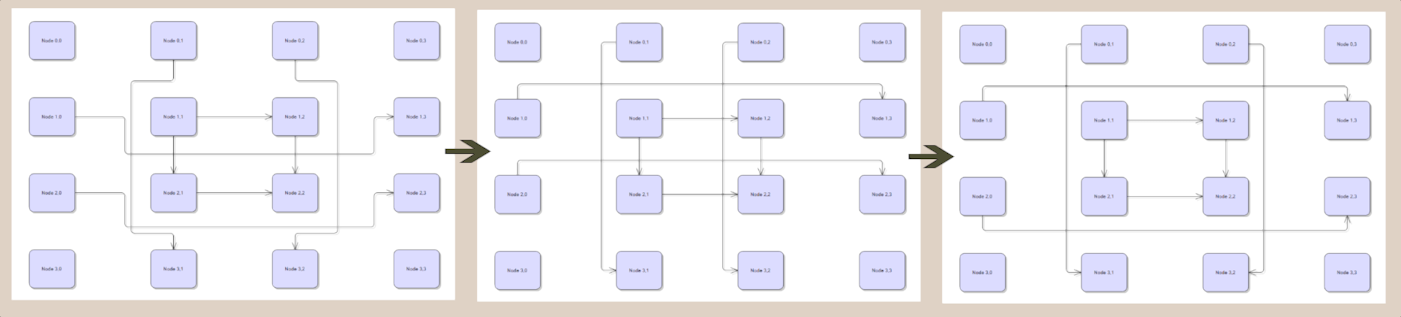
Auto-routing improvements- Enable the MinimizeCrossings property of PatternRouter to make it select routes with fewer crossings. Note that this adds an additional loop to the algorithm, which may affect performance for large diagrams.
- PatternRouter now considers the EvaluateFarPoints property of RoutingOptions and selects the best route from the possible start/end point combinations of the link's incident nodes. Note that this adds an additional loop to the algorithm, which may affect performance for large diagrams.
- Set the MinLinkSpacing property of CompositeRouter to specify the padding between nearby links.
- This screenshot demonstrates the effects of EvaluateFarPoints and MinimizeCrossings properties:
 Custom lasso tools
If you set the Behavior property of DiagramView to DrawLasso, the control lets users draw selection lasso without changing actual Selection. You could use that in conjunction with InitializeLasso and LassoDrawn events to implement custom tools or selection logic, such as:
- Opening a custom context menu or UI panel styled for bulk operations.
- Creating a visual screenshot / export of only the selected region.
- Implementing custom selection logic or filters (e.g. select nodes of a specific type, or select only links).
- Bookmarking the selected area (adding it to Bookmarks).
Serialization improvements- Json element added to SaveToStringFormat enumeration, and can be used with SaveToString and LoadFromString methods.
- For naming consistency with XML serialization methods, JSON methods (SaveToJsonFile, SaveToJsonObject, etc) have been renamed to SaveToJson and LoadFromJson, along with corresponding async versions.
- JSON serialization methods extended to provide full set of Stream overloads.
- XML serialization methods extended to provide full set of Stream overloads (previously missing altogether from DiagramDocument and missing async versions in Diagram).
- AutoDeleteItems now saved in JSON format.
- LaneGrid cell border styling now saved in JSON format.
- LaneGrid header fonts now saved in JSON format.
- The order of OutgoingLinks and IncomingLinks is now preserved in JSON format.
Layout improvements- Spanning nodes in LayeredLayout: set the SpanLargeNodes property of LayeredLayout to let nodes span multiple layers. When enabled, the algorithm calculates the optimal layer span based on relative node dimensions and layer distances, or respects explicit node overrides set via the LayeredLayoutTraits.LayerSpan trait. Spanning nodes are centered over their spanned layers, and adjacent elements are pushed aside to prevent overlap.
- FractalLayout spacing: the MinNodeDistance property lets you set minimum spacing between parent nodes and their children.
PowerPoint exporterThe PowerPointExporter class allows you to export diagrams and multi-page DiagramDocument objects into PowerPoint presentation (.pptx) files. Diagram nodes and links are converted into native PowerPoint DrawingML shapes and connectors, preserving text wrapping, fonts, background fills, and arrowheads. Append methods also let you add diagrams as new slides at the end of existing presentation files without overwriting their original content.
Miscellaneous- DisplayText and DisplayImages properties added to Overview control.
- Append method overloads added to ExcelExporter.
- FoldedCaptionHeight property added to ContainerNode.
- Fixed dash cap rendering in SvgNode.
- The Overview element added to RenderTarget enum specifies if an item is being rendered by Overview or MiniMap controls, letting you provide alternative / simplified visualization.
API changes- Attention: LoadFromJson(string) parameter now specifies file name. Call LoadFromString to load from JSON data string instead. Replace SaveToJson -> String calls with SaveToString(SaveToStringFormat.Json);
- SaveToJsonFile and SaveToJsonObject replaced by SaveToJson overloads.
- LoadFromJsonFile and LoadFromJsonObject replaced by LoadFromJson overloads.
- ZoomBehavior class renamed to LassoBehavior (it now implements both DrawLasso and Zoom behaviors).
 MindFusion.SpreadsheetWhole-column and whole-row references
Formulas can now reference entire columns, such as =SUM(A:B), or entire rows, such as =SUM(1:5).
- Relative, absolute, and mixed references are supported (A:C, $A:$C, 1:5, $1:$5).
- Cross-sheet whole-range references are supported, e.g. =SUM(Sheet2!A:B).
- The calculation engine and lookup functions (VLOOKUP, HLOOKUP, LOOKUP, XLOOKUP) have been optimized to leverage sparse cell storage, efficiently evaluating whole-range references without iterating over empty cells.
- Relative whole-range references are automatically refactored during cell copy, paste, and insert / delete operations.
Formula Syntax Coloring and Range HighlightingThe in-place cell editor in WorkbookView now supports dynamic syntax colorization and interactive range highlighting. When entering or modifying formulas, tokens such as string literals, numeric values, and cell references are automatically color-coded. All referenced cell ranges, including rectangular blocks, whole-column, whole-row, and cross-sheet references, are simultaneously highlighted on the worksheet grid with matching outlines and translucent fills, making complex formulas easier to read and verify.
 Virtual KeyboardAutomatic popup and focus tracking
The VirtualKeyboard control now provides declarative virtual keyboard auto-show capabilities for WPF applications via attached dependency properties. Setting AutoShow="True" on a window or container enables the keyboard to automatically pop up when an editable control receives focus and dismiss when focus moves away:
- AutoShow - enables or disables automatic popup display for the target input (or for all child inputs when set on the parent Window or container).
- LayoutMode - specifies the keyboard layout (Default, Extended, Compact, Numeric3x4, or Numeric4x4) associated with the focused control. When defined at the window level, it provides the default layout for all fields; setting it on an individual control overrides the window default.
- PopupPlacement - defines the popup position relative to the focused control (PlacementMode.Bottom, Top, Left, Right, etc).
- CustomLayout - assigns a custom KeyboardLayout template to specific fields.
The popup uses a native non-activating window style (WS_EX_NOACTIVATE), ensuring that interaction with the virtual keyboard never steals keyboard focus from the active text box. When a PasswordBox receives focus, the keyboard automatically activates PasswordMode to conceal keypresses.
<Window
    xmlns:vk="http://mindfusion.eu/keyboard/wpf"
    vk:VirtualKeyboard.AutoShow="True"
    vk:VirtualKeyboard.LayoutMode="Compact">

    <StackPanel>
        <!-- Inherits window-level default 'Compact' layout -->
        <TextBox x:Name="txtFirstName" />

        <!-- Overrides to 3x4 numeric keypad (0-9, Clear, Backspace) -->
        <TextBox x:Name="txtUserID" vk:VirtualKeyboard.LayoutMode="Numeric3x4" />

        <!-- Overrides to 4x4 numeric keypad (0-9, ., -, Clear, Backspace, Tab, Enter) -->
        <TextBox x:Name="txtPhone" vk:VirtualKeyboard.LayoutMode="Numeric4x4" />

        <!-- Automatically enables password masking -->
        <PasswordBox x:Name="txtPassword" />
    </StackPanel>
</Window>
New standard layoutsThree new built-in keyboard layouts have been added to the KeyboardMode enumeration and can be activated via the Mode property or retrieved as reusable KeyboardLayout templates:
- Compact - a streamlined layout without function keys (F1-F12) or redundant modifiers, ideal for mobile, touch, and compact popup windows.
- Numeric3x4 - a 3x4 telephone-style numeric keypad with 0-9 digits, Backspace, and Clear (C).
- Numeric4x4 - a 4x4 numeric keypad including 0-9, decimal point, minus sign, Backspace, Clear, Tab, and Enter.
// Select a layout mode directly or retrieve preconfigured layout objects
virtualKeyboard.Mode = KeyboardMode.Compact;

// Or use static factory methods for LayoutRing or TemplateLayout
var layout = KeyboardLayout.CompactLayout();
...
Miscellaneous- Added ClearKey class and static Clear property to clear the contents of currently focused input controls.
- Automatic password detection: the auto-show popup automatically enables PasswordMode when the target field is a password box.
Installer for the latest version can be downloaded here, or from the
clients area on our site:
https://mindfusion.dev/WpfPackTrial.zipUpdated assemblies are also available as
MindFusion.Pack.Wpf NuGet package.
Enjoy!


 Pages: 1

 MindFusion.WPF Pack, 2026.R2 (Read 53 times)


